RoleManagementGroup group has been carried over automatically. See Permissions for details.Basic concept
In every process description, you enter a role from your organization in the Responsible column. You maintain these roles, such as Head of Sales or Production Employee, centrally in Ariadne and then use them wherever you model processes.
Role dashboard
You open the role dashboard via the Roles module in the left navigation. It lists all roles in your organization with their levels, units and role owners.
Searching, filtering and sorting roles
Use the controls at the top to narrow down the list:
- Search: Type a role title into the search field.
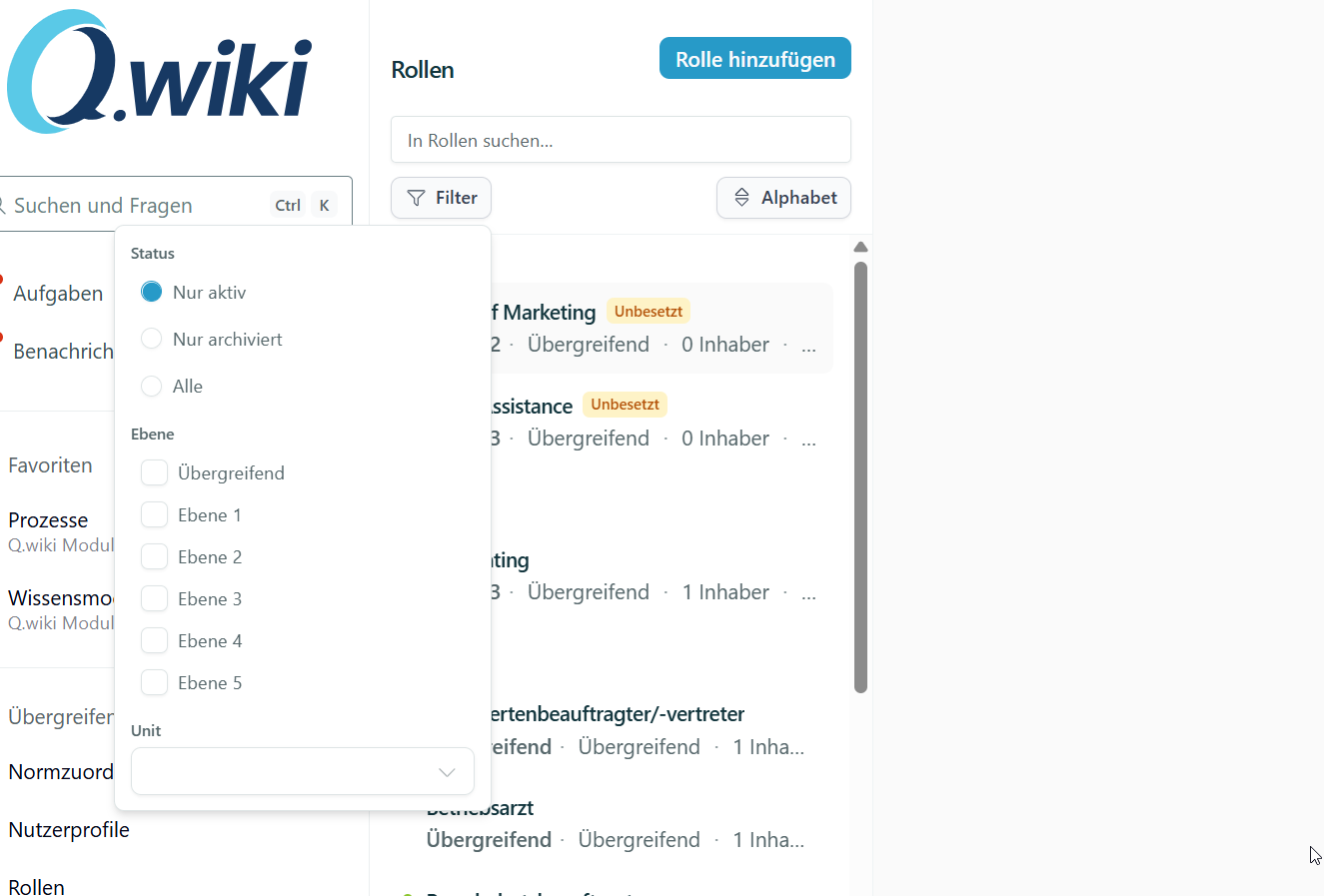
- Filter: The Filterbutton lets you narrow the list by
- Status: Active only, Archived only or All
- Level: Overall or Level 1 to 5
- Unit: for example, a specific site
- Sort by: Alphabetical or Level
Role details
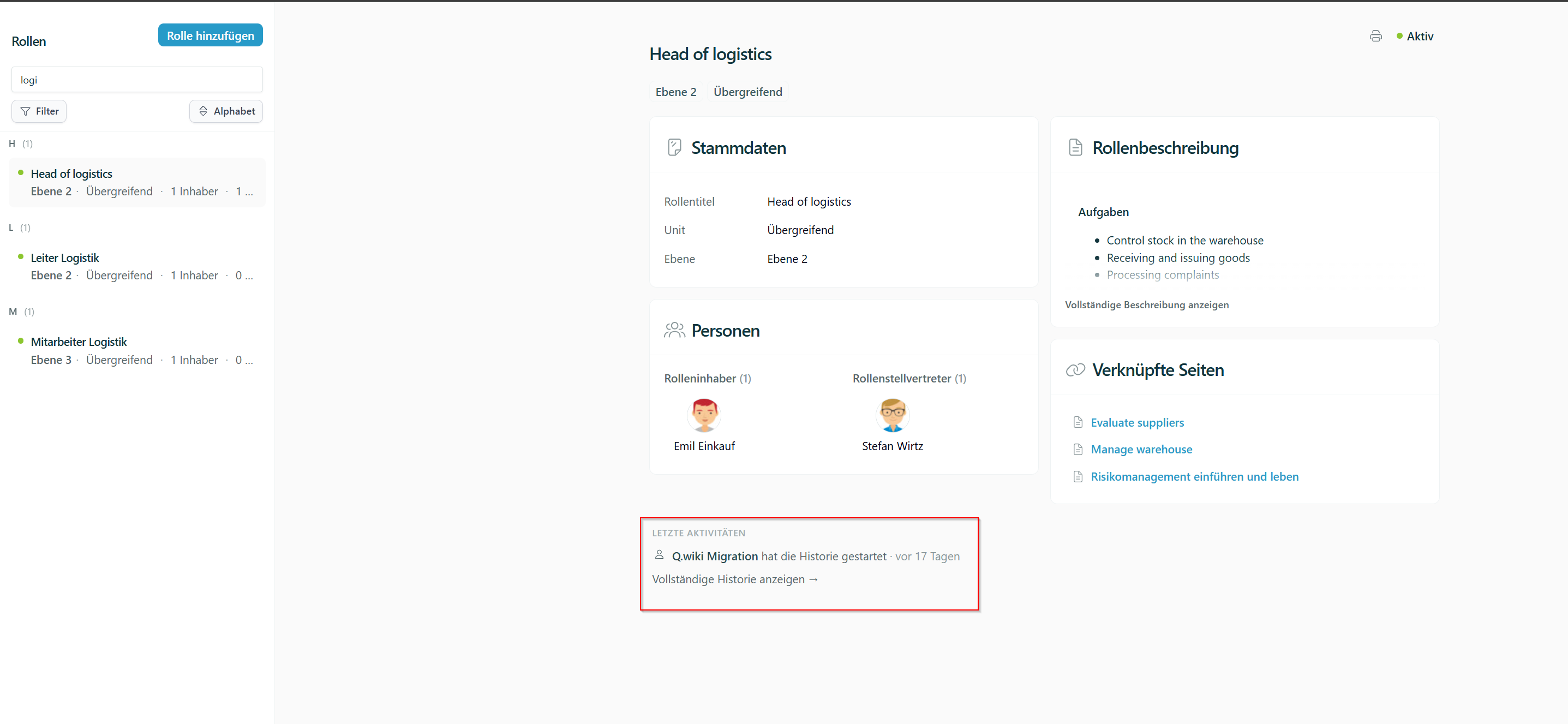
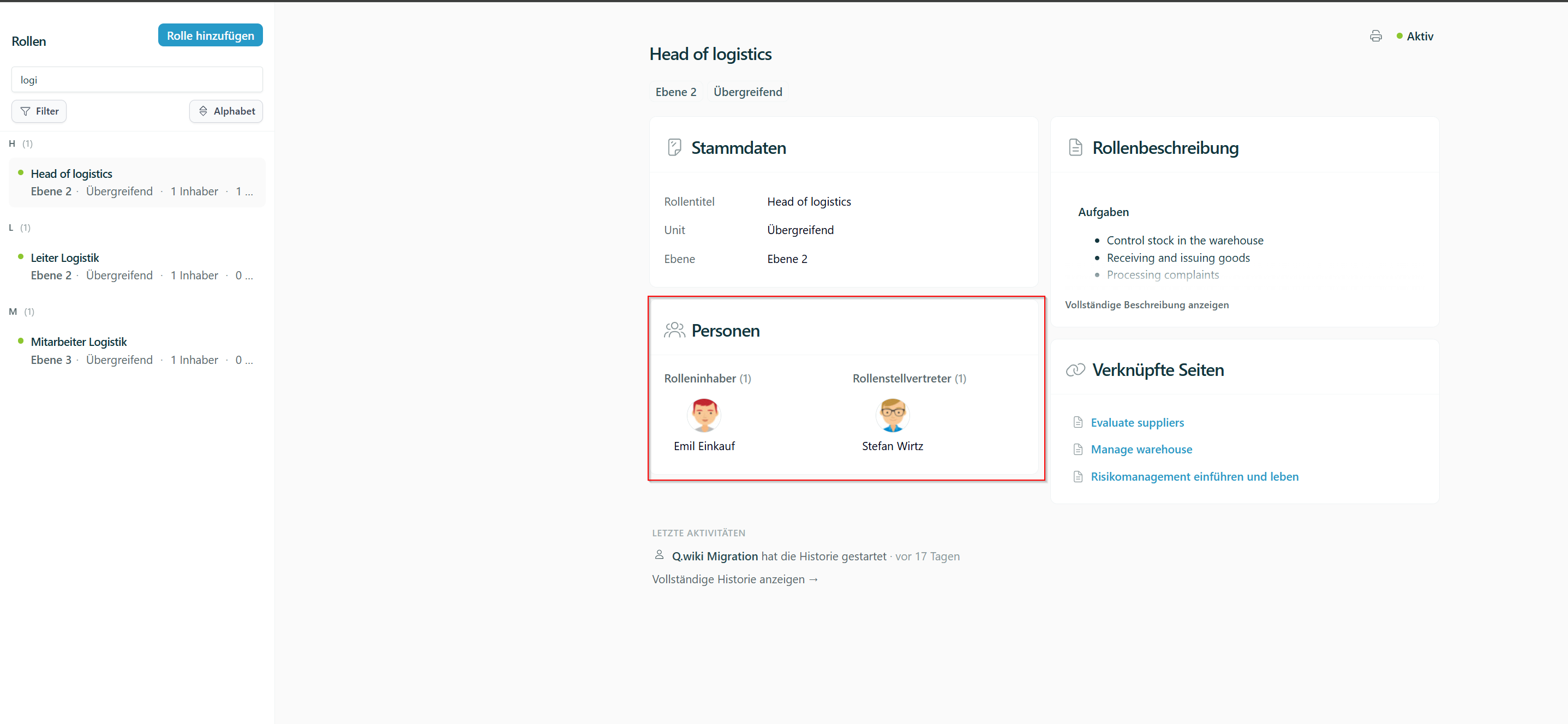
When you select a role, its details appear on the right:
- Core data: role title, level and unit
- People: role owners and role deputies. Click a person to open their profile.
- Role description
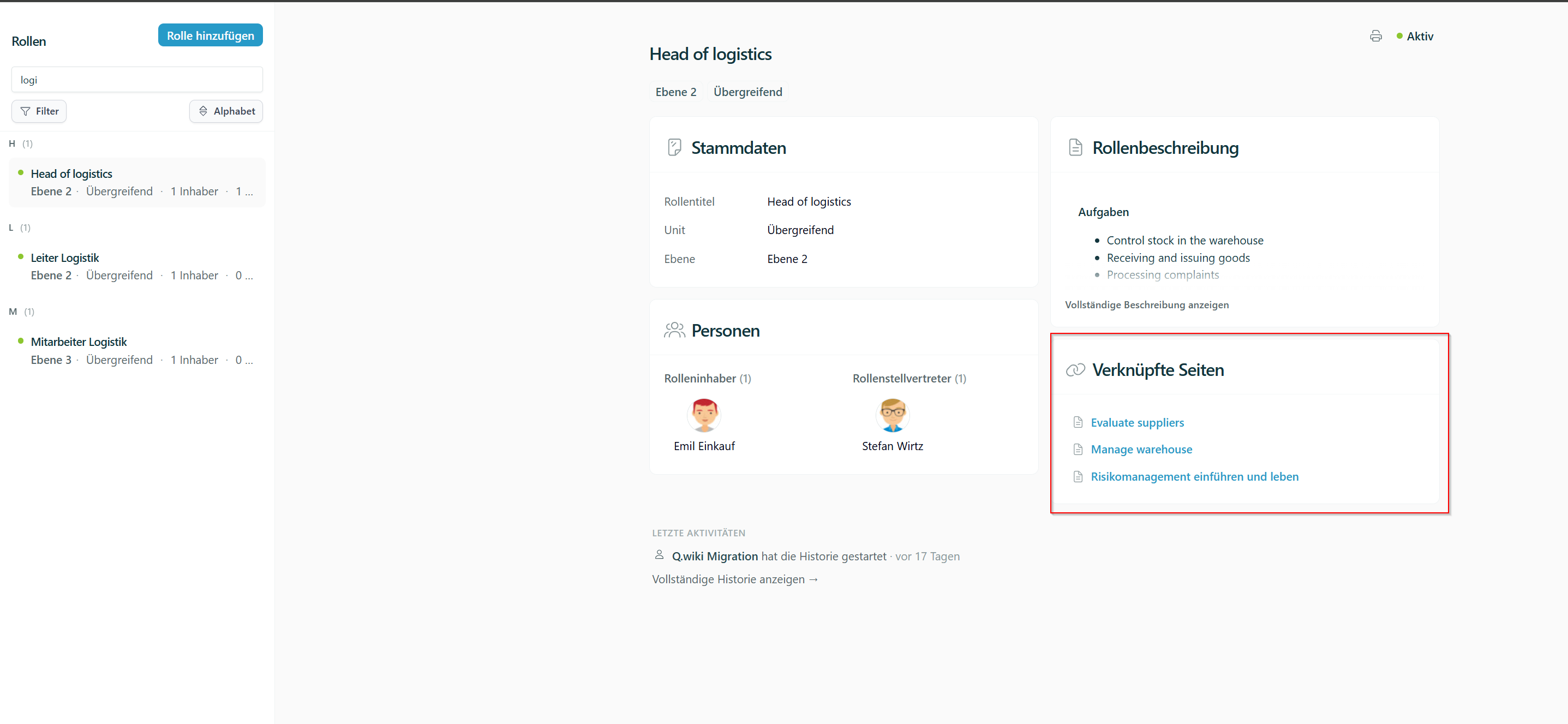
- Linked pages: the Ariadne pages that use the role (see Role links)
- Recent activity: the latest changes to the role. Click Show full history to open the complete role history.
Creating a new role
To create a new role, click + Add role at the top. In the dialog, enter the Role title and select the Level and the Unit. The unit defaults to “Overall”.
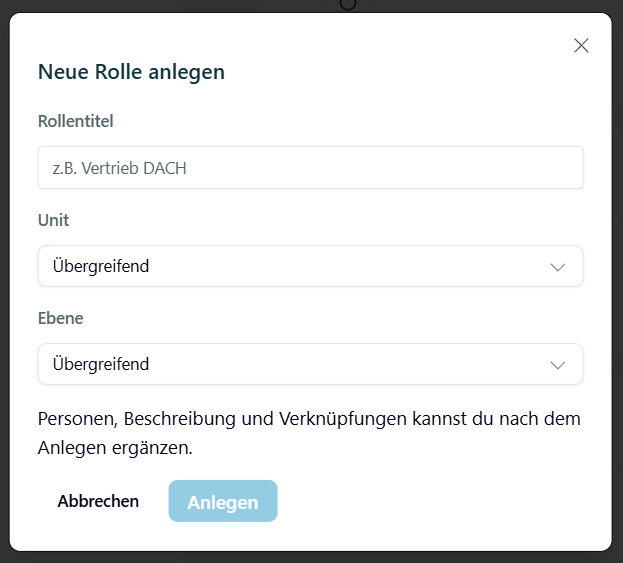
The Level field places the role in your company's hierarchy. We recommend assigning roles according to their hierarchy level and defining staff positions as overall.
You can add people, a description and links directly in the role details after creating the role.
Archiving and reactivating roles
If a role is no longer needed, you can hide it with Archive role in the role details. Archived roles then only appear in the role dashboard when you filter by the status Archived only or All. Click Activate role to make the role visible throughout the system again.
Role links
Linking content to roles
You link roles directly on the respective Ariadne pages (see Role widget). The links then appear in the role details under Linked pages.
Each linked page shows a status indicating the state in which the role is used, for example Approved state, Draft or Proposed change. This also shows you when a role has so far only been entered in an open proposed change.
If a role has more than five links, click Show all linked pages to open the complete list. There you can search the pages by title.
Assigning roles to users and viewing content
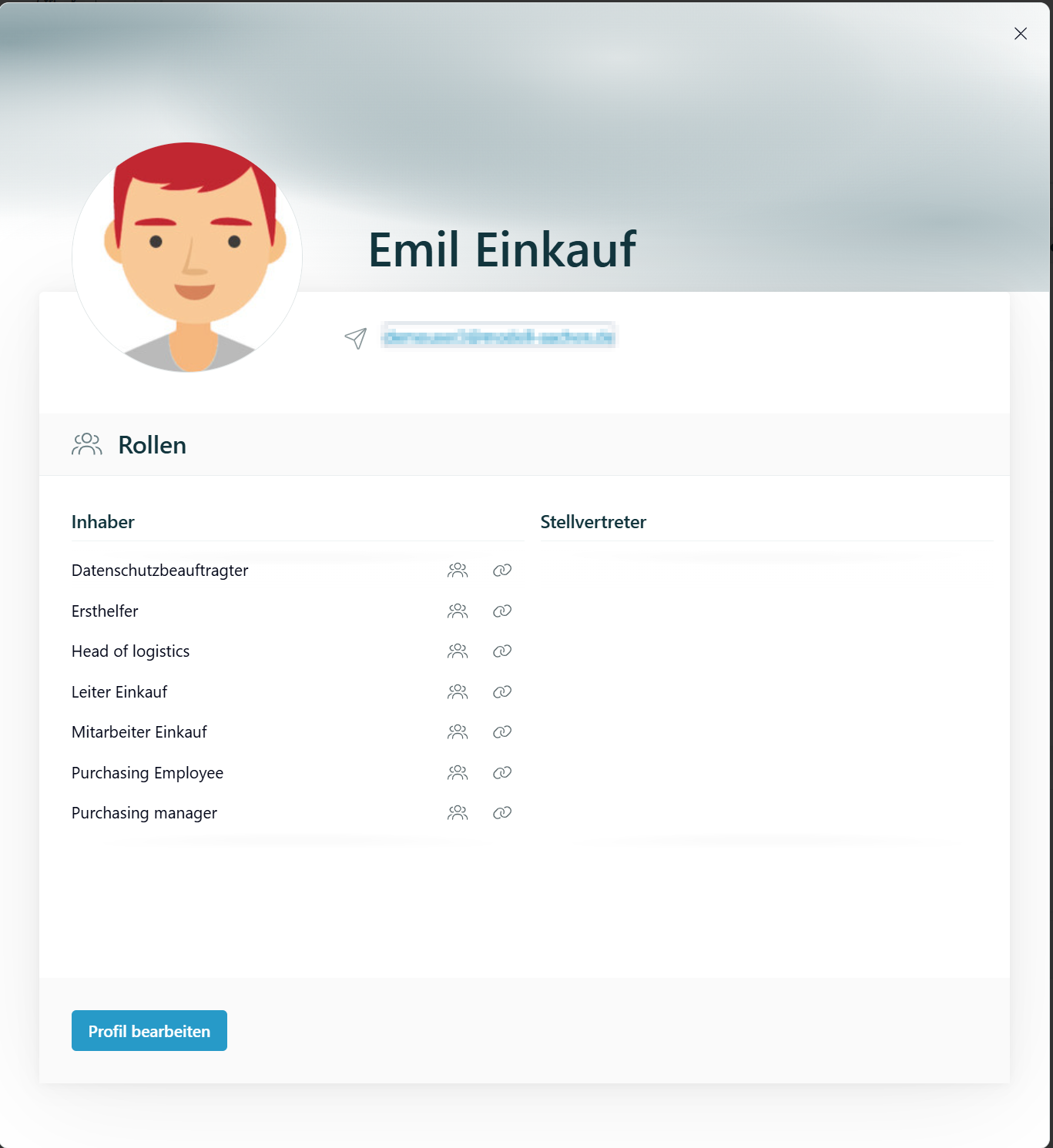
The user profile shows which roles a user holds. The two buttons next to the role name open the role details and the assigned content.
In the role details, click Edit (pencil icon) in the People section to add or remove role owners and role deputies.
Role widget
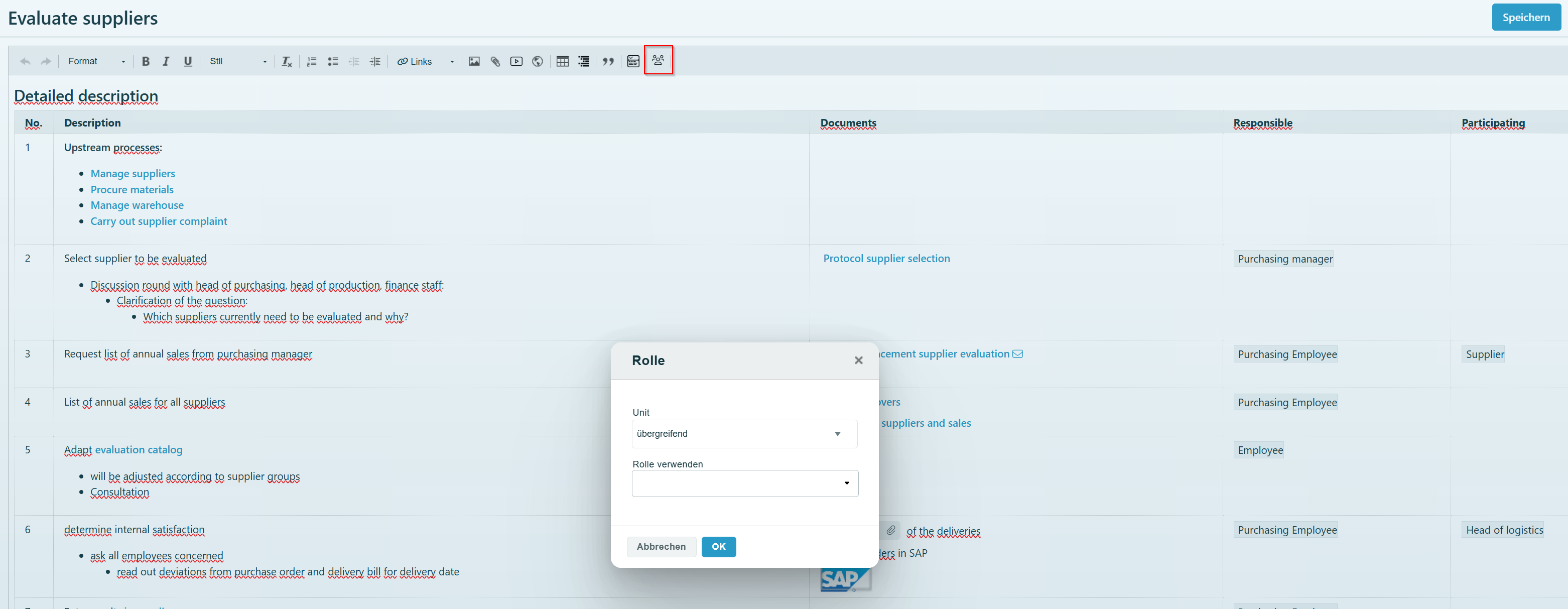
The page editor includes a role widget. In edit mode, you select the right role directly from a list.
Select the unit (for example, the site) in the first field and the role in the second:
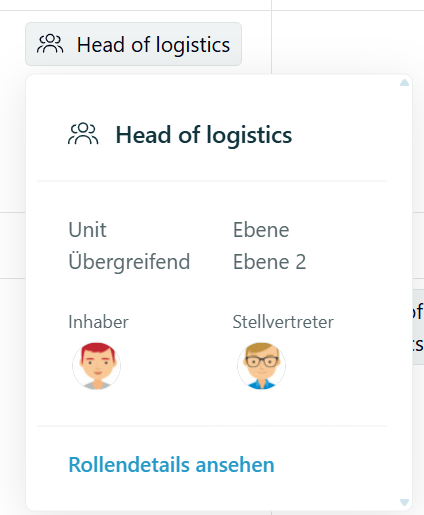
Clicking a role opens a pop-up with more information about the role and a direct link to the role details in the dashboard. Clicking the user icon opens more information about the person.
 |  |
Permissions
Permissions for roles are now set in the Module settings of the Roles module:
- Viewing: All users can always see roles. This cannot be restricted, because roles are shown in every process description.
- Editing: Key users can always edit roles. You can authorize additional groups.
Users with read-only access see the role dashboard without editing functions, so without + Add role, Edit or archiving.
Setting edit permissions
- In the left navigation, open the … menu of the Roles module.
- Select Module settings.
- On the left, open Module access permissions.
- Under Authorized groups, the fixed entry “Key users can always edit roles” is always listed. Below it, add the groups that should also be able to edit roles, or remove groups.
- Click Save. Reset discards unsaved changes.
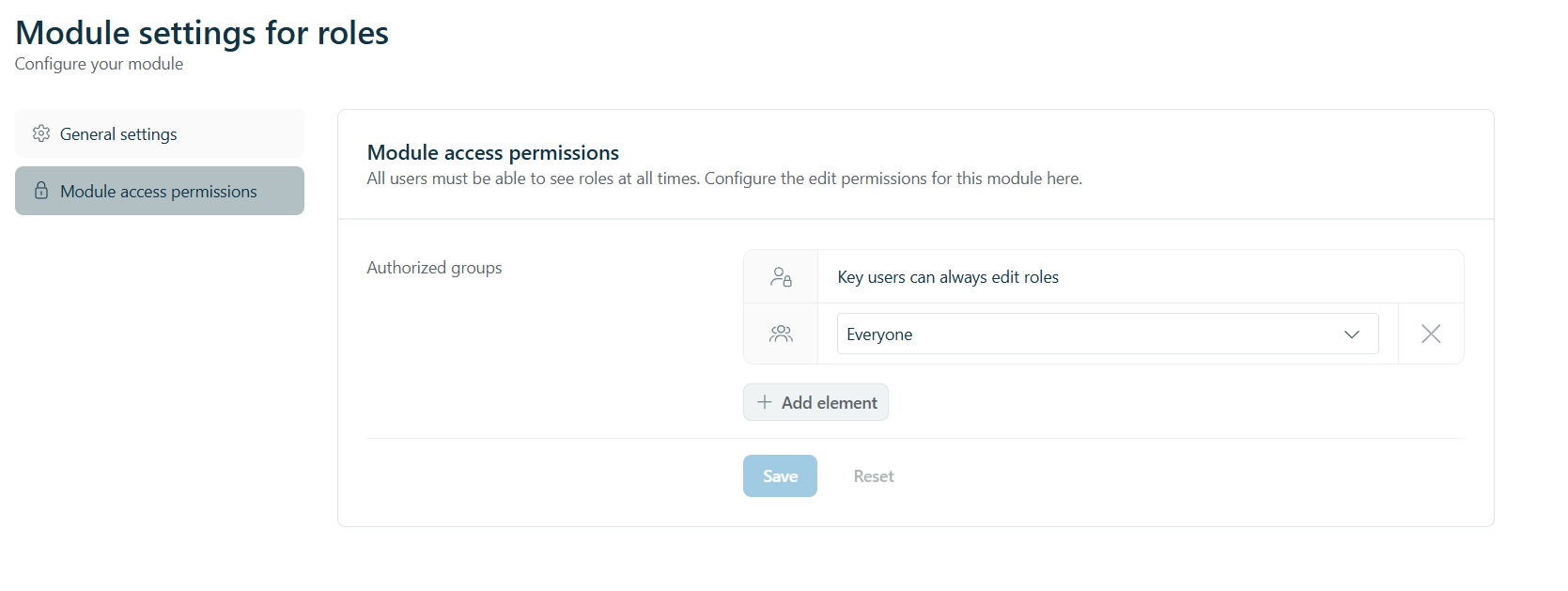
Under General settings, you can also change the module name as it appears in the navigation.
What happens to the existing RoleManagementGroup?
Until now, editing was restricted via the RoleManagementGroup group. Your previous setup was carried over automatically during the switch:
| Before | Now under “Authorized groups” |
|---|---|
The RoleManagementGroup was empty, so everyone could edit roles. | The group Everyone is entered, so everyone can still edit roles. If only certain people should be able to do so, remove “Everyone” and add the appropriate groups. |
The RoleManagementGroup had members. | The RoleManagementGroup is entered as an authorized group. Its members can still edit roles, and you can keep maintaining the group in group management as before.In addition, KeyUsers are now also authorized to view and modify roles following the recent changes. As they provide administrative support, these permissions enable them to carry out their responsibilities effectively. |
RoleManagementGroup was empty. This no longer applies. If you empty the group now, only key users and the other authorized groups can edit roles. If everyone should be able to edit again, add the group Everyone in the module settings.Will the RoleManagementGroup be deleted in the future?
No. The RoleManagementGroup group remains in group management. Deleting groups is generally not planned: a group can be used in many places throughout the system, and these references cannot be resolved or cleaned up automatically when a group is deleted.
Whether the group still grants edit permissions is determined solely in the module settings. If it is not listed under Authorized groups, it no longer has any effect on role management.
Role management in practice
Interested in role management beyond its technical implementation in Ariadne? Our consulting team has put together articles on this topic in the Modell Aachen Insights (in German):
Was this article helpful?
That’s Great!
Thank you for your feedback
Sorry! We couldn't be helpful
Thank you for your feedback
Feedback sent
We appreciate your effort and will try to fix the article