This step-by-step guide will help you install the Ariadne Connect browser extension in your preferred browser.
Prerequisites
Step-by-Step
- Open your preferred browser.
- Look for the extensions icon (puzzle piece) in the top-right corner of the navigation bar and click on it.
- Open your browser's extensions page:
- Google Chrome: Select Manage extensions > Chrome Web Store
- Microsoft Edge: Select Get extensions for Microsoft Edge
- Mozilla Firefox: Select Add-ons > Find more add-ons
- Alternatively, you can access Ariadne Connect directly via these links:
- Search for Ariadne Connect and click Add or Get to install.
- Close the store and open Ariadne in your browser.
- Ariadne Connect automatically connects to your Ariadne account. A message confirms: "Ariadne Connect is paired."Tip: For security reasons, connections from non-Ariadne systems require additional confirmation.
- You can now access Ariadne Connect at any time via the icon on the right side of your browser.
Using Ariadne Connect
Ariadne is now connected to your browser and extends its functionality with Ariadne documentation. Ariadne Connect automatically recognizes all external links integrated in your Ariadne documentation – that is, references to external websites that are part of process descriptions or work instructions.
When you open a website, service, or application in your browser that is linked in your Ariadne documentation, Ariadne Connect automatically detects which Ariadne contents reference that URL. The extension then suggests the relevant Ariadne documentation to support you.
Direct and indirect links
Ariadne Connect distinguishes between two types of links:
- Direct links (green): These occur when the page path exactly matches the address linked in Ariadne, or the domain is configured to recognize parameters and URL fragments.
- Indirect links (blue): These are recognized when the domain of the visited page matches a domain linked in Ariadne, even if the path does not exactly match.
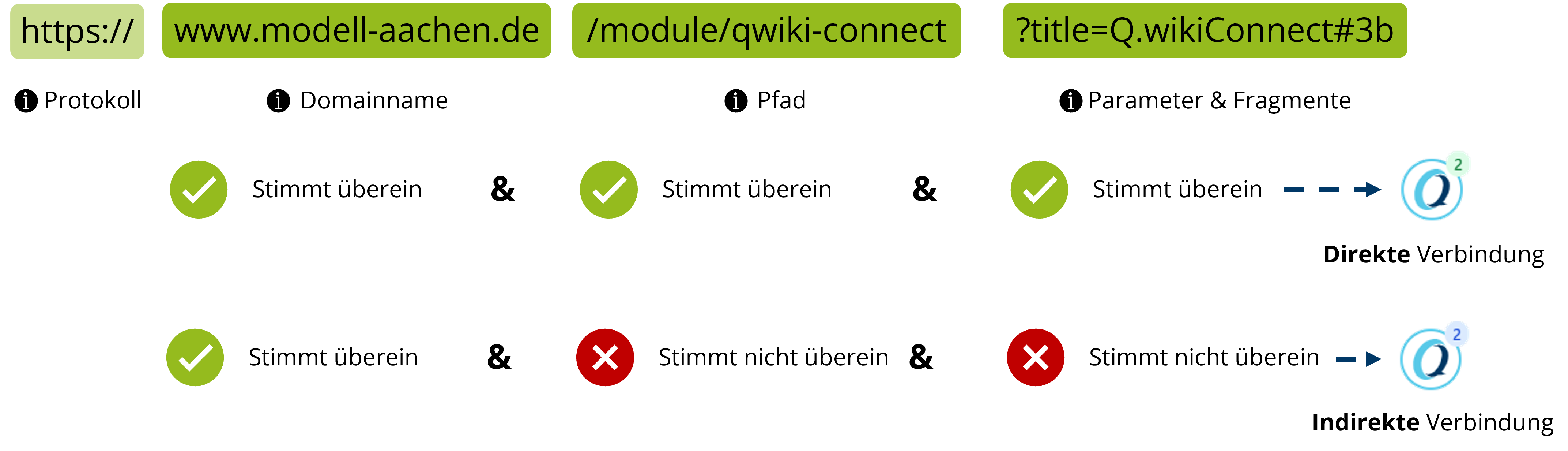
Through this intelligent recognition, Ariadne Connect helps you access relevant Ariadne content whenever you visit websites linked in your documentation.
Additional Settings

Auto-Expand
When you enable Auto-Expand, Ariadne Connect automatically opens whenever a direct link is detected on a website you're visiting.
Disconnect
Clicking the Lock icon disconnects Ariadne Connect from Ariadne. The next Ariadne instance you visit will automatically reconnect.
Manual Sync
Clicking the Sync icon triggers a manual update of recognized links from Ariadne. This is useful if a new link has been added to Ariadne and you want to use that new link with Ariadne Connect right away.
Was this article helpful?
That’s Great!
Thank you for your feedback
Sorry! We couldn't be helpful
Thank you for your feedback
Feedback sent
We appreciate your effort and will try to fix the article