Die Vorgangsbeschreibung ist mehr als ein reines Textfeld: Der Editor unterstützt Formatierungen, Listen, Tabellen, Links, Bilder und weitere Elemente. Dieser Artikel zeigt dir, welche Möglichkeiten du hast.
Grundlagen
Über die Vorgangsbeschreibung kannst du deinen Vorgang detailliert dokumentieren – zum Beispiel mit Aufgabenlisten, die den Fortschritt einer Maßnahme durch Abhaken sichtbar machen.
Absatzformate
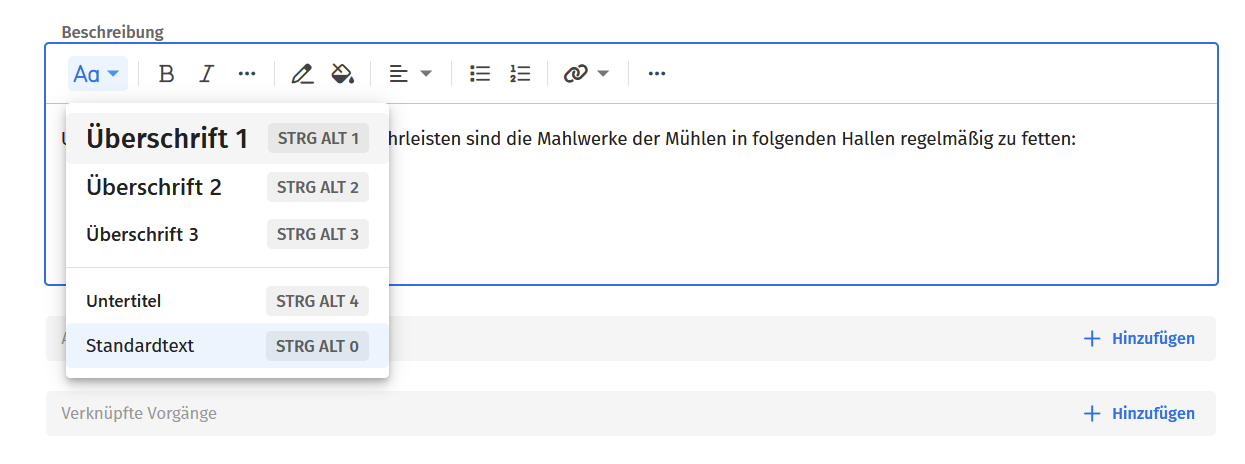
Über das Menü Aa stehen dir folgende Absatzformate zur Verfügung:
- Überschrift 1, 2, 3 – zur Strukturierung der Beschreibung
- Untertitel – stellt den Text tiefer, z. B. für mathematische Ausdrücke oder Text-Indizes
- Standardtext – der klassische Absatztext ohne weitere Formatierung
Weitere Zeichenformate
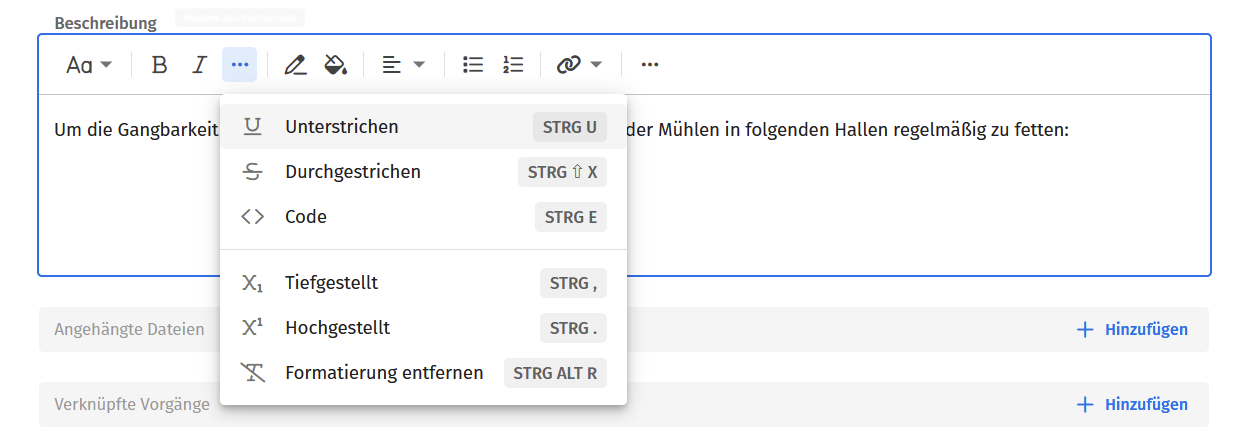
Zusätzlich zu Fett und Kursiv unterstützt der Editor:
- Unterstrichen und Durchgestrichen
- Code – für Programmcode oder andere Informationen in eigener Darstellung
- Tiefgestellt und Hochgestellt – z. B. für mathematische Ausdrücke
- Formatierung entfernen – entfernt alle Formatierungen, auch solche, die beim Kopieren aus anderen Quellen wie Word oder Webseiten übernommen wurden
Farben
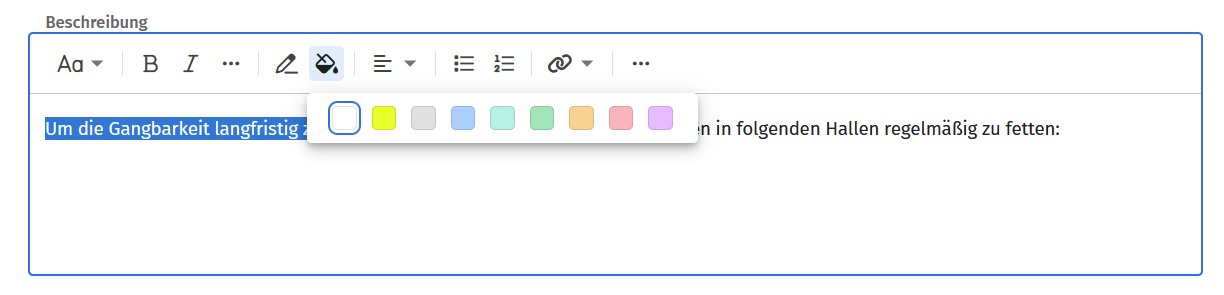
Über den Farbwähler kannst du sowohl die Textfarbe als auch den Texthintergrund einfärben, um wichtige Inhalte oder kritische Punkte hervorzuheben.
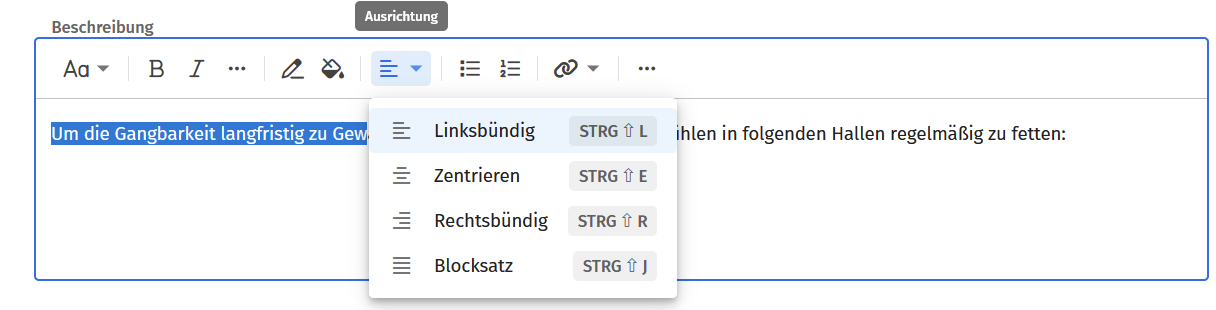
Ausrichtung
Texte lassen sich linksbündig, zentriert, rechtsbündig oder als Blocksatz ausrichten.
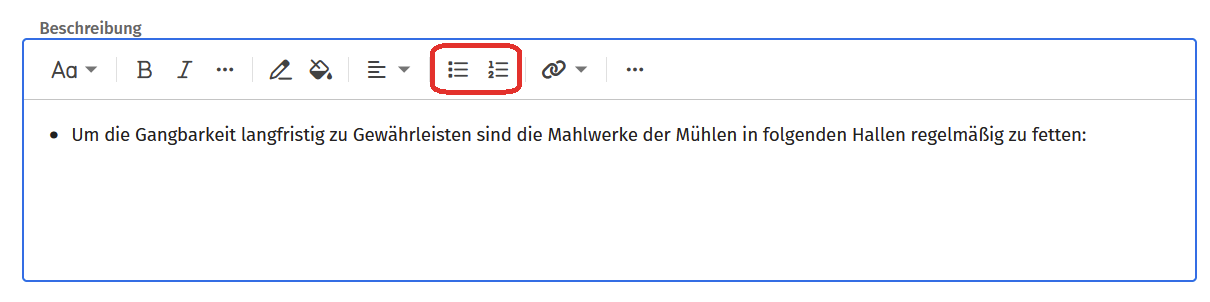
Aufzählungen und Nummerierungen
Aufzählungen und nummerierte Listen kannst du über die entsprechenden Funktionen einfügen. Markiere bestehenden Text, um ihn nachträglich in eine Liste umzuwandeln.
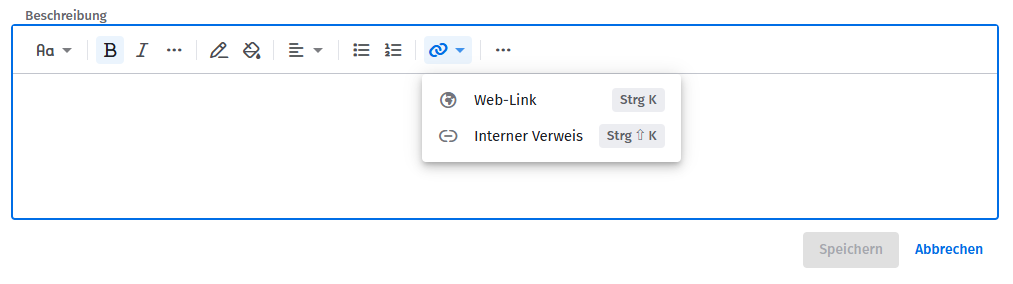
Links und Verweise
Über das Link-Symbol kannst du entweder einen Web-Link auf externe Webseiten oder einen Verweis auf andere Ariadne-Inhalte einfügen. Verweise lassen sich einfach über den Titel des gewünschten Elements suchen.
Bilder einfügen
Du kannst Bilder sowohl in die Vorgangsbeschreibung als auch in Kommentare einfügen – auf zwei Wegen:
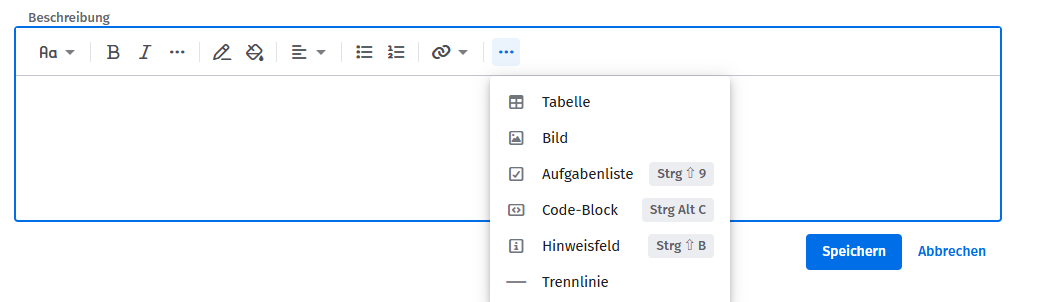
- Über das Drei-Punkte-Menü und die Auswahl Bild, um eine Datei vom Computer auszuwählen
- Per Drag-and-Drop direkt in die Beschreibung
Eingefügte Bilder erscheinen auch im Bereich Angehängte Dateien und lassen sich dort über das Papierkorbsymbol entfernen.
Weitere Optionen
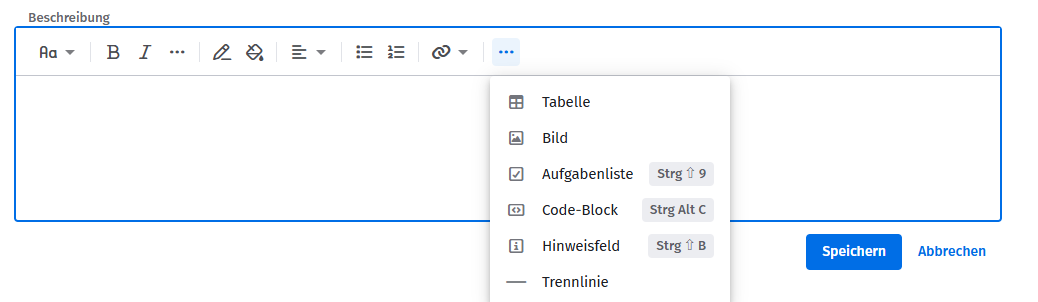
Über das Drei-Punkte-Menü stehen dir zusätzlich folgende Elemente zur Verfügung:
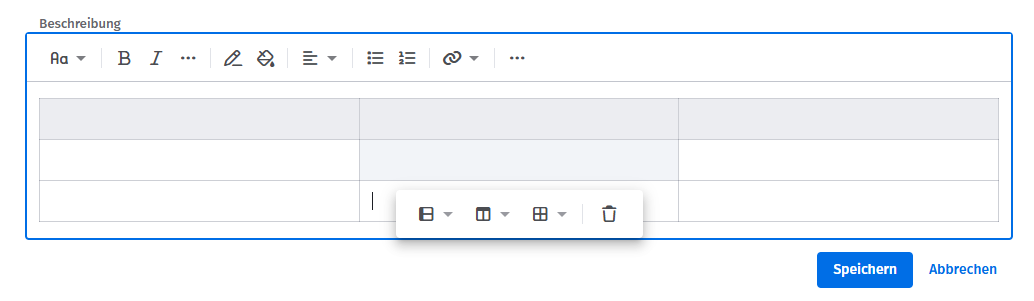
Tabellen
Fügt eine zunächst dreispaltige Tabelle ein. Über das Tabellenmenü kannst du Zeilen und Spalten einfügen oder löschen sowie Zellen verbinden, teilen oder hervorheben.
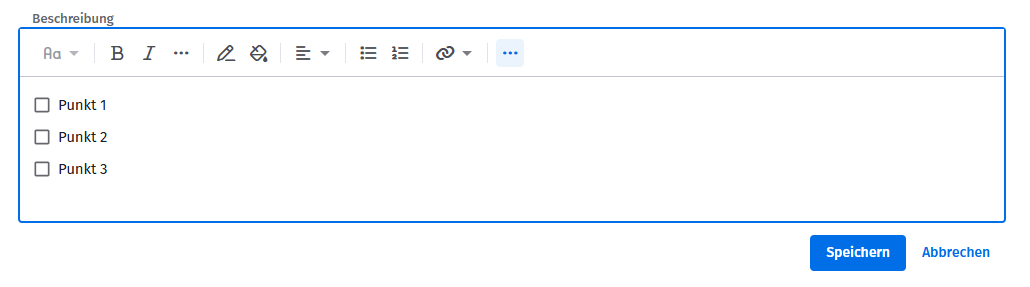
Aufgabenliste
Stellt den Bearbeitungsfortschritt einzelner Aufgaben dar. Einzelne Punkte lassen sich abhaken.
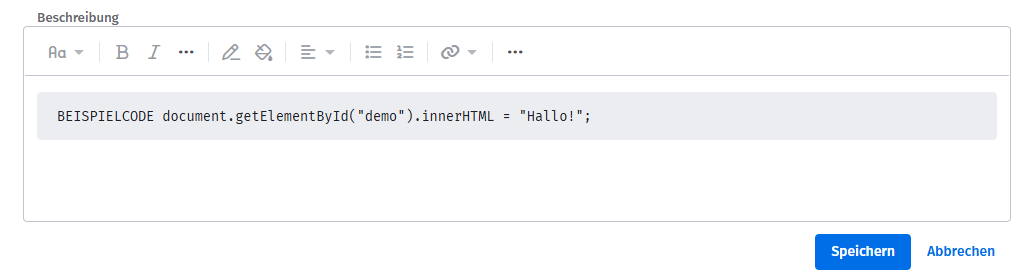
Code-Block
Stellt Softwarecode unformatiert und leicht kopierbar dar.
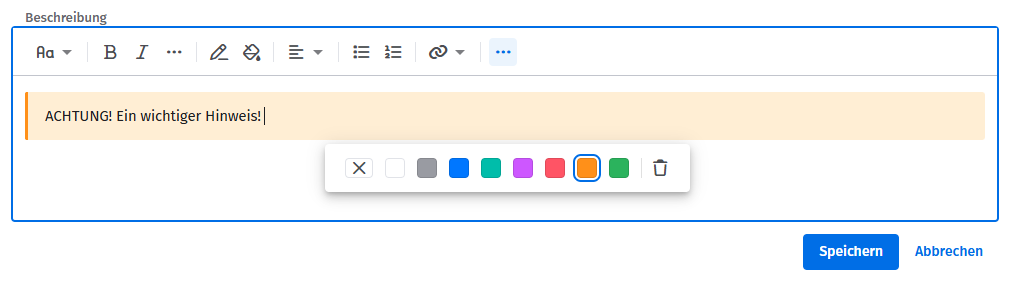
Hinweisfeld
Hebt Inhalte farblich hervor. Die Farbe des Feldes lässt sich anpassen, sobald der Cursor im Feld platziert ist; das Feld kann auch komplett gelöscht werden.
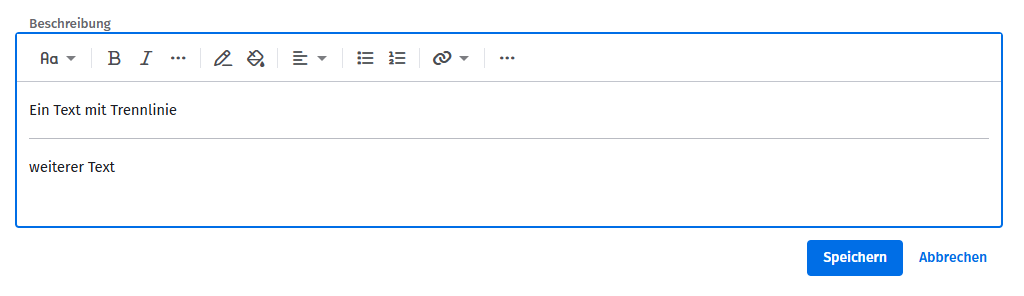
Trennlinie
Grenzt Inhalte optisch voneinander ab.
Tastaturkürzel
Im Editiermodus der Vorgangsbeschreibung oder von Kommentaren stehen folgende Tastaturkürzel zur Verfügung:
| Effekt | Windows | Mac |
|---|---|---|
| Überschrift 1 | Strg + Alt + 1 | ⌘ + ⌥ + 1 |
| Überschrift 2 | Strg + Alt + 2 | ⌘ + ⌥ + 2 |
| Überschrift 3 | Strg + Alt + 3 | ⌘ + ⌥ + 3 |
| Untertitel | Strg + Alt + 4 | ⌘ + ⌥ + 4 |
| Standardtext | Strg + Alt + 0 | ⌘ + ⌥ + 0 |
| Fett | Strg + B | ⌘ + B |
| Kursiv | Strg + I | ⌘ + I |
| Unterstrichen | Strg + U | ⌘ + U |
| Durchgestrichen | Strg + Umsch + X | ⌘ + ⇧ + X |
| Code | Strg + E | ⌘ + B |
| Tiefgestellt | Strg + , | ⌘ + , |
| Hochgestellt | Strg + . | ⌘ + . |
| Formatierung entfernen | Strg + Alt + R | ⌘ + ⌥ + R |
| Linksbündig | Strg + Umsch + L | ⌘ + ⇧ + L |
| Zentrieren | Strg + Umsch + E | ⌘ + ⇧ + E |
| Rechtsbündig | Strg + Umsch + R | ⌘ + ⇧ + R |
| Blocksatz | Strg + Umsch + J | ⌘ + ⇧ + J |
| Aufzählung | Strg + Umsch + 8 | ⌘ + ⇧ + 8 |
| Nummerierung | Strg + Umsch + 7 | ⌘ + ⇧ + 7 |
| Web-Link | Strg + K | ⌘ + K |
| Erwähnen | @ | @ |
| Aufgabenliste | Strg + Umsch + 9 | ⌘ + ⇧ + 9 |
| Code-Block | Strg + Alt + C | ⌘ + ⌥ + C |
| Hinweisfeld | Strg + Umsch + B | ⌘ + ⇧ + B |
Verwandte Artikel
War dieser Artikel hilfreich?
Das ist großartig!
Vielen Dank für das Feedback
Leider konnten wir nicht helfen
Vielen Dank für das Feedback
Feedback gesendet
Wir wissen Ihre Bemühungen zu schätzen und werden versuchen, den Artikel zu korrigieren