Ansichten helfen dir, den Überblick über Vorgänge zu behalten. Dieser Artikel zeigt dir, welche Ansichten es gibt, wie du sie anpasst und wie du mit Suche, Filtern und Sortierung gezielt die Vorgänge findest, die dich interessieren.
Überblick mit Ansichten
Um dir einen Überblick über alle Vorgänge und deren Stand zu verschaffen, stellt dir das Vorgangsmanagement vorgefertigte Ansichten in Tabellenform bereit. Sie stehen dir je Team im linken Bereich zur Auswahl.
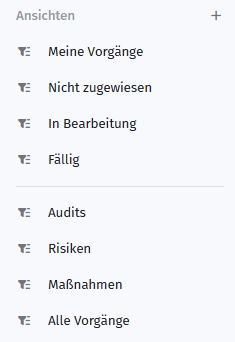
Vorgefertigte Ansichten
| Ansicht | Zeigt |
|---|---|
| Meine Vorgänge | Alle Vorgänge, denen du als Verantwortlicher oder Bearbeiter zugewiesen bist |
| Nicht zugewiesen | Alle Vorgänge, bei denen kein Verantwortlicher gesetzt wurde |
| In Bearbeitung | Alle Vorgänge mit dem Status "In Bearbeitung" |
| Fällig | Alle offenen Vorgänge, deren Fälligkeitsdatum in der Vergangenheit bis zum heutigen Tag liegt |
| Audits | Alle Vorgänge des Typs "Audit" |
| Risiken | Alle Vorgänge des Typs "Risiko" |
| Maßnahmen | Alle Vorgänge der Typen "Maßnahme" und "Maßnahmenplan" |
| Alle Vorgänge | Alle offenen Vorgänge |
Übersicht über die Spalten
Je nach aufgerufener Ansicht unterscheiden sich die angezeigten Spalten. Die Spalten Typ, ID, Betreff und Status sind dabei immer gleichbleibend:
- Typ – der bei der Anlage des Vorgangs gewählte Vorgangstyp
- ID – wird jedem Vorgang automatisch zugewiesen und besteht aus dem Team-Kürzel und einer laufenden Nummer
- Betreff – der angegebene Betreff des Vorgangs
- Status – der aktuelle Status des Vorgangs
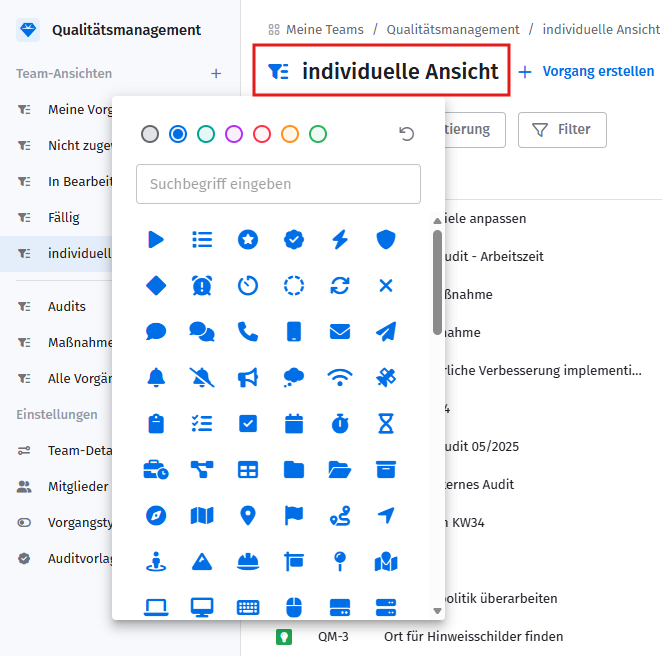
Name und Icon der Ansicht anpassen
Name und Icon einer Ansicht kannst du individuell anpassen. Ein Doppelklick auf den Namen startet die Bearbeitung.
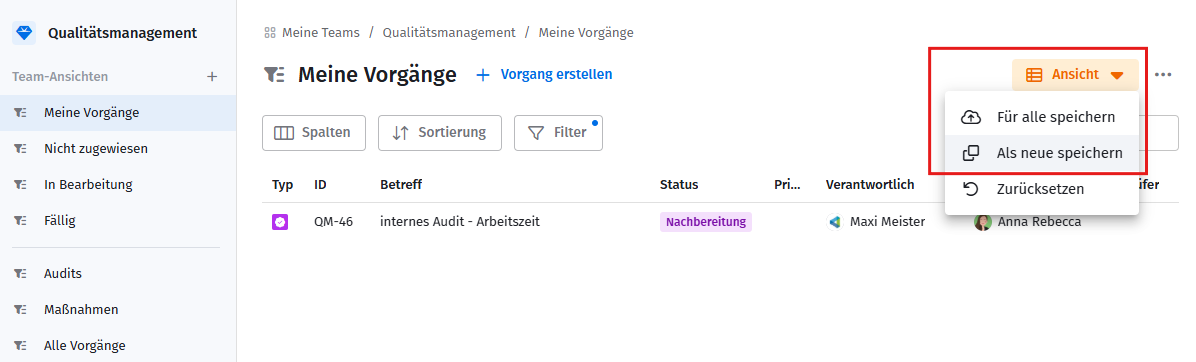
Individuelle Ansichten speichern
Die vorgefertigten Ansichten kannst du durch wenige Anpassungen ganz auf deine Bedürfnisse zuschneiden. Sobald du Filterbedingungen setzt oder Spalten ein- oder ausblendest, wird daraus automatisch eine individuelle Ansicht.
Diese individuelle Ansicht kannst du für dich persönlich Als neue speichern oder, falls du Inhaber des Teams bist, sogar Für alle speichern und sie damit dem gesamten Team zugänglich machen.
Schnellansicht für Vorgänge
Vorgänge lassen sich aus der Übersichtsansicht heraus auf zwei Wegen öffnen: als Vollansicht und als Schnellansicht in der Seitenleiste (rechts).
- Klicke auf das Icon links neben dem Vorgang, um die Vollansicht zu öffnen.
- Klicke auf den Vorgangstitel oder an eine andere Stelle in der Zeile, um die Schnellansicht zu öffnen.
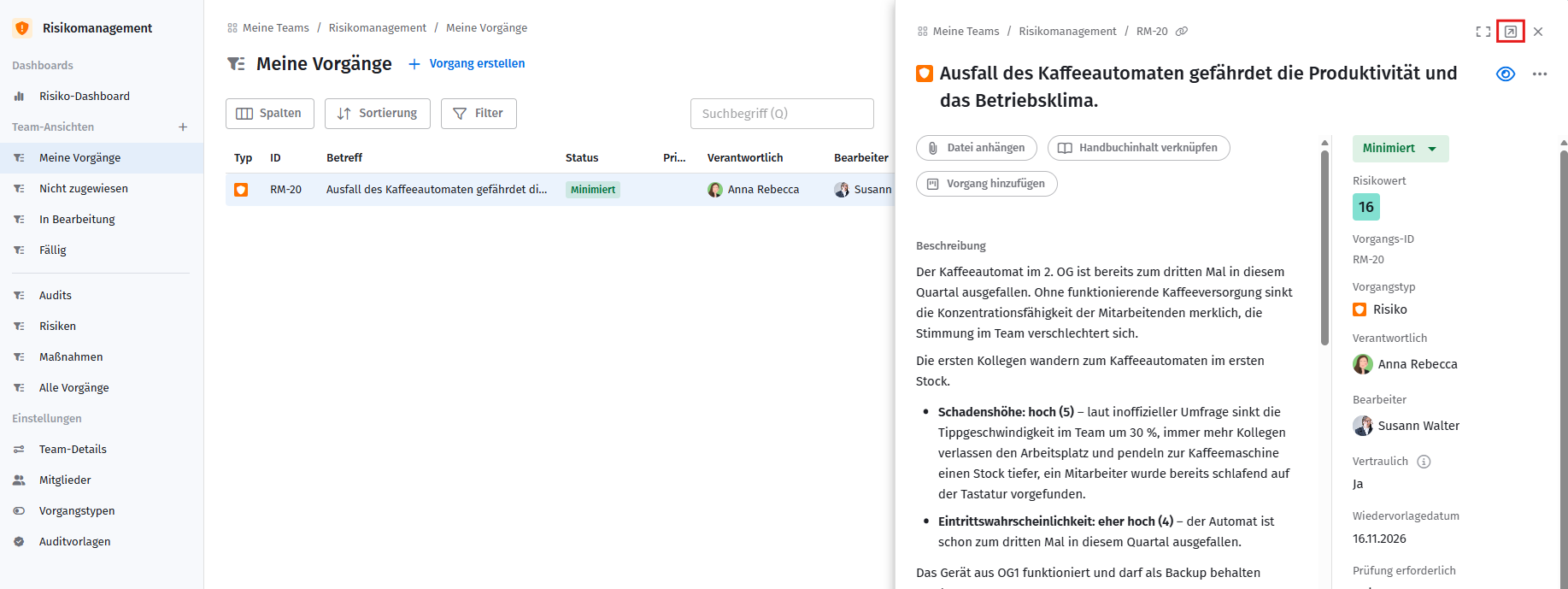
Aus der Schnellansicht heraus öffnest du die Vollansicht über den Button oben rechts.
Der Vorteil der Schnellansicht: Du kannst schnell durch die Tabelle klicken und Vorgänge am rechten Rand direkt bearbeiten, ohne die Vorgangsübersicht zu verlassen. Das ist praktisch, wenn du nach Vorgängen suchst oder mehrere Vorgänge schnell hintereinander bearbeiten möchtest.
Suche von Vorgängen
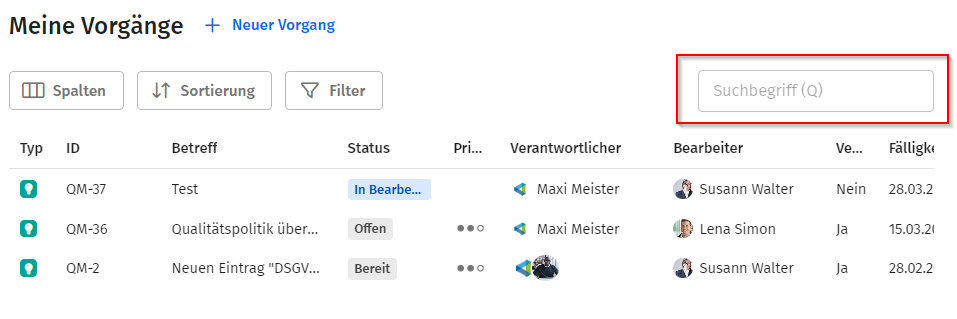
Über die Suchbegriffsleiste kannst du Vorgänge durchsuchen.
Spalten ein- und ausblenden
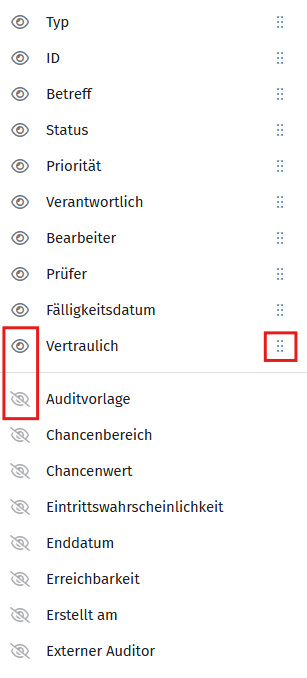
Über Spalten passt du an, welche Informationen in der Ansicht angezeigt werden. Du kannst einzelne Spalten ein- oder ausblenden und mit Drag-and-Drop ihre Reihenfolge verändern.

Sortieren von Vorgängen
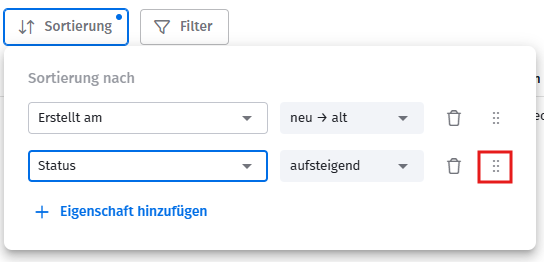
In einer Ansicht kannst du über Sortierung nach bestimmten Feldern auf- oder absteigend sortieren.
Du kannst mehrere Eigenschaften kombinieren. Über Eigenschaft hinzufügen ergänzt du weitere Sortierkriterien; die Reihenfolge – und damit die Wertigkeit der einzelnen Kriterien – veränderst du per Drag-and-Drop auf der rechten Seite.
Filterbedingungen im Maßnahmenmanagement
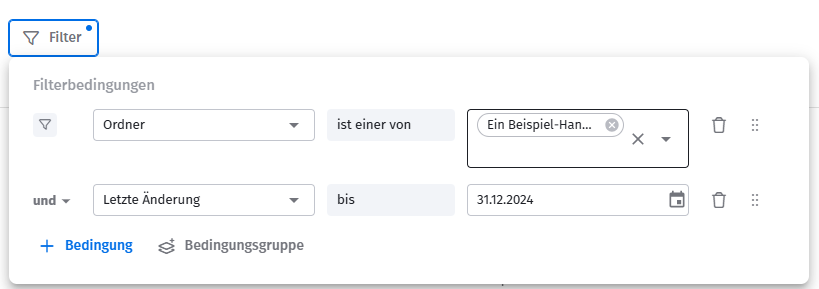
Wähle über Bedingung eine oder mehrere Eigenschaften und die passenden Werte aus.
UND-/ODER-Filter
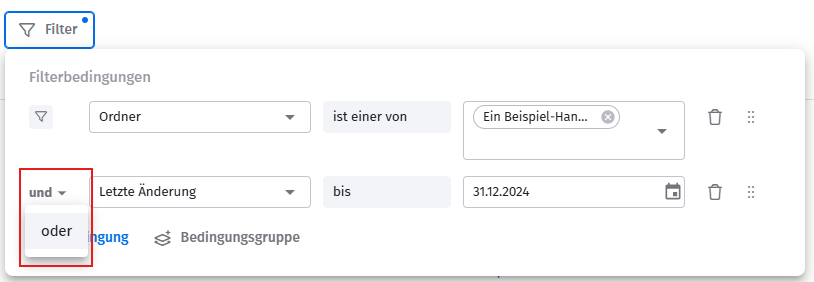
Zwischen mehreren Filterbedingungen kannst du wählen, ob sie mit UND oder ODER verknüpft werden.
Bedingungsgruppen
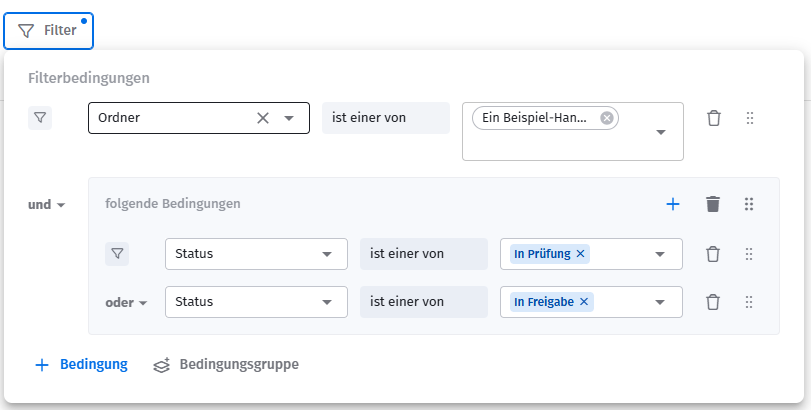
Mehrere Filter lassen sich zu einer Bedingungsgruppe zusammenfassen und wiederum mit anderen Filterbedingungen verknüpfen.
Anpassung der Spaltenbreiten
Die Spaltenbreiten legst du je Team und für dich individuell fest, indem du die Rahmen zwischen den Spaltenköpfen mit der Maus ziehst.

Verwandte Artikel
War dieser Artikel hilfreich?
Das ist großartig!
Vielen Dank für das Feedback
Leider konnten wir nicht helfen
Vielen Dank für das Feedback
Feedback gesendet
Wir wissen Ihre Bemühungen zu schätzen und werden versuchen, den Artikel zu korrigieren