Risiken und Chancen werden in Ariadne über denselben Vorgangstyp-Mechanismus angelegt und mit Informationen angereichert. Dieser Artikel zeigt dir, welche Angaben du machen kannst und wie du einen Vorgang exportierst oder löschst.
Voraussetzungen
- Der Vorgangstyp Risiko bzw. Chance muss für dein Team freigeschaltet sein
Schritt-für-Schritt
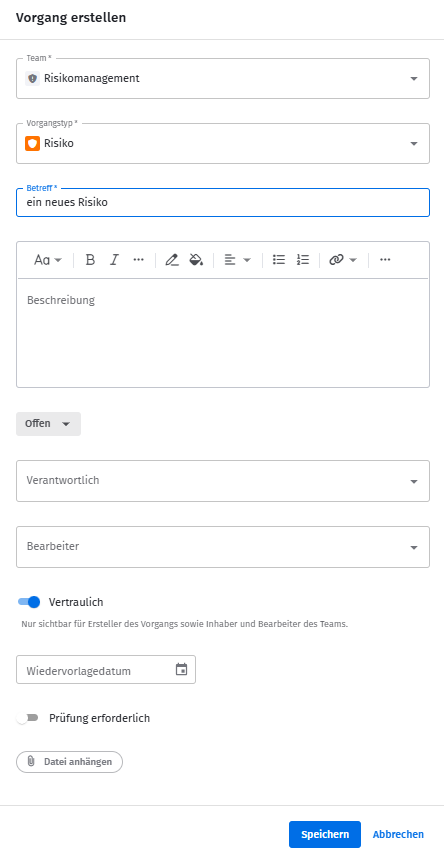
- Wähle den Vorgangstyp Risiko oder Chance, um einen neuen Vorgang anzulegen. Die verfügbaren Felder sind für beide Vorgangstypen identisch.
- Fülle die folgenden Felder aus:
- Betreff: Pflichtfeld
- Beschreibung: Beschreibung des Risikos oder der Chance
- Status: je nach Vorgangstyp einer der Status – siehe Risiken bewerten bzw. Chancen bewerten
- Verantwortlich: die verantwortlichen Personen
- Bearbeiter: die für die Bearbeitung zuständigen Personen
- Vertraulich: legt fest, ob der Vorgang für alle Teammitglieder einsehbar ist oder nur für Inhaber und Bearbeiter
- Wiedervorlagedatum: frei verwendbar, zum Beispiel als Erinnerung für eine regelmäßige Neubewertung
- Prüfung erforderlich: markiert den Vorgang für eine anstehende Prüfung
- Klicke auf Speichern.
Risiko oder Chance mit Informationen anreichern
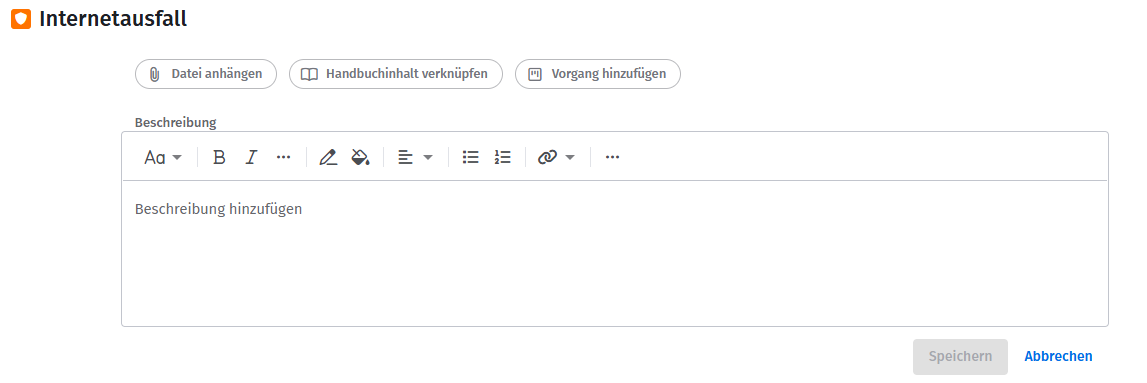
Bei jedem Risiko und jeder Chance hast du unterschiedliche Möglichkeiten, den Vorgang mit Informationen anzureichern:
- In der Beschreibung stehen dir die gewohnten Funktionen des Editors zur Verfügung.
- Du kannst andere Seiten verknüpfen.
- Du kannst einen oder mehrere Vorgänge verknüpfen.
- Du kannst Dateianhänge hinzufügen.
Kommentare bieten außerdem eine gute Möglichkeit, sich im Team über den Vorgang auszutauschen.
Risiko oder Chance exportieren oder löschen
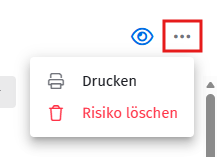
Ein Risiko oder eine Chance kannst du oben rechts in der Vorgangsansicht über das Dreipunktmenü Drucken per Browser-Druckfunktion drucken oder als PDF speichern. Über dasselbe Menü kannst du den Vorgang auch löschen.
Ergebnis
Das Risiko oder die Chance ist angelegt, mit den relevanten Informationen angereichert und für dein Team sichtbar bzw. je nach Einstellung auf Inhaber und Bearbeiter beschränkt.
Verwandte Artikel
War dieser Artikel hilfreich?
Das ist großartig!
Vielen Dank für das Feedback
Leider konnten wir nicht helfen
Vielen Dank für das Feedback
Feedback gesendet
Wir wissen Ihre Bemühungen zu schätzen und werden versuchen, den Artikel zu korrigieren