Du kannst Risiken gesammelt über eine Excel-Vorlage importieren und Vorgangslisten oder einzelne Risiken wieder exportieren. Dieser Artikel zeigt dir, wie beides funktioniert.
Voraussetzungen für den Import
- Du bist Inhaber des Teams – nur Inhaber dürfen Risiken importieren
- Die Datei liegt im Format .xlsx vor und ist maximal 3 MB groß
Risiken importieren
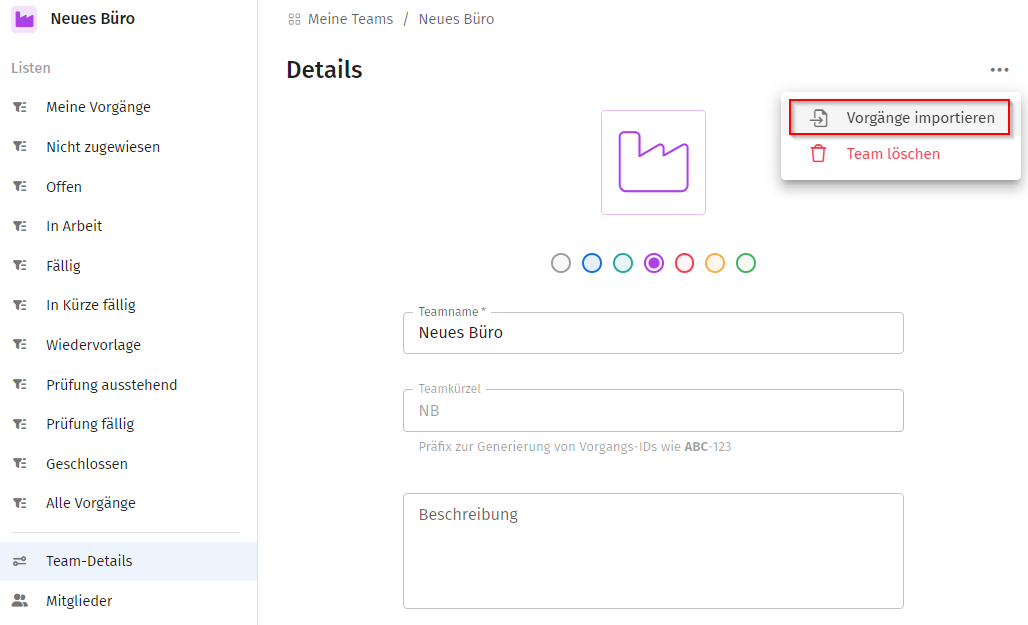
- Öffne die Team-Details deines Teams.
- Klicke im Drei-Punkte-Menü auf Vorgänge importieren.
- Fülle die Risiken-Import-Vorlage aus dem Anhang aus und wähle die Datei aus oder ziehe sie in das Upload-Feld.
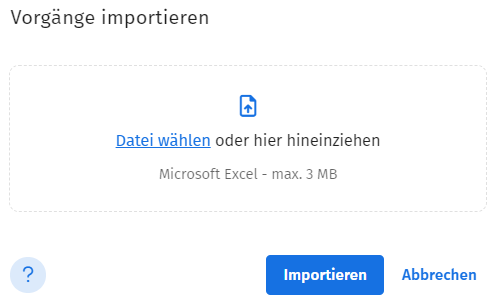
- Klicke auf Importieren.
Tritt beim Import ein Fehler auf, wird sichergestellt, dass keine der Daten aus der Excel-Datei übernommen werden. Prüfe in diesem Fall die angezeigte Fehlermeldung und korrigiere die Datei entsprechend.
Risiken exportieren
Eine Vorgangsansicht exportieren
- Öffne die gewünschte Ansicht, z. B. Alle Vorgänge.
- Klicke oben rechts auf das Drei-Punkte-Menü und wähle Als Excel-Datei exportieren.
Der Export enthält genau die Spalten, die Sortierung und den Filter, die in der Ansicht aktuell eingestellt sind. Vorgangsbeschreibungen werden nicht mit exportiert, und Priorität sowie Vorgangstyp werden als Text statt als Icon dargestellt. Über einen Klick auf die Vorgangs-ID in der exportierten Datei gelangst du direkt zum jeweiligen Vorgang, sofern du Zugriff darauf hast.
Ein einzelnes Risiko exportieren
- Öffne das gewünschte Risiko.
- Klicke oben rechts auf das Drei-Punkte-Menü und wähle Drucken.
Das Risiko wird als PDF mit allen Informationen exportiert.
Verwandte Artikel
War dieser Artikel hilfreich?
Das ist großartig!
Vielen Dank für das Feedback
Leider konnten wir nicht helfen
Vielen Dank für das Feedback
Feedback gesendet
Wir wissen Ihre Bemühungen zu schätzen und werden versuchen, den Artikel zu korrigieren