Innerhalb eines Teams übernehmen Mitglieder unterschiedliche Rollen mit jeweils eigenen Rechten. Dieser Artikel erklärt die Rollen Inhaber, Bearbeiter und Gast und zeigt dir, wie du Teammitglieder verwaltest.
Überblick über die Rollen
| Rolle | Beschreibung |
|---|---|
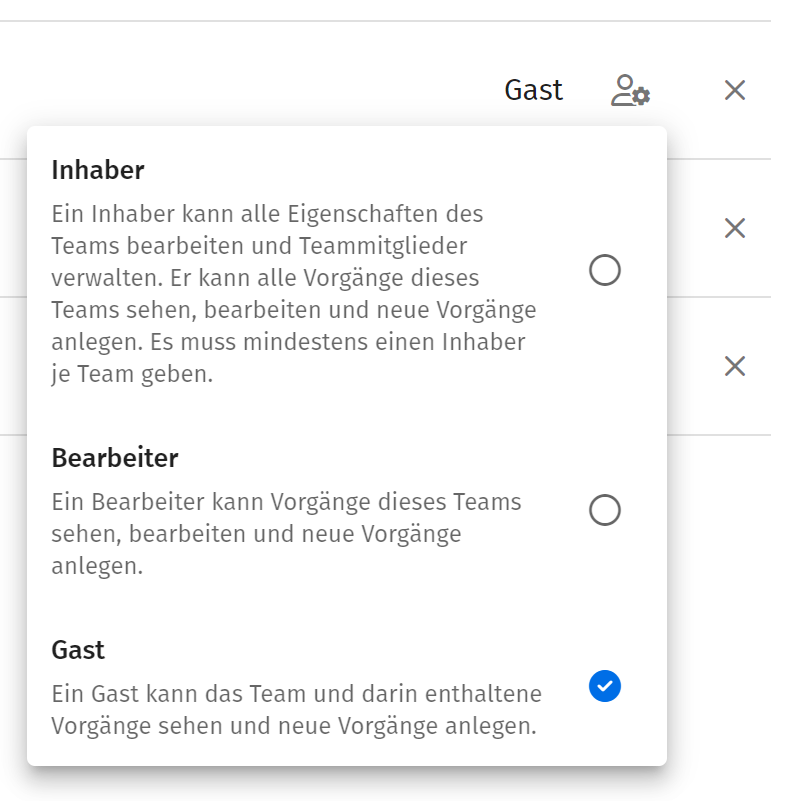
| Inhaber | Kann alle Eigenschaften des Teams bearbeiten und Teammitglieder verwalten. Sieht, bearbeitet und legt Vorgänge an, kann außerdem einen Import von Maßnahmen durchführen. Es muss mindestens einen Inhaber pro Team geben. |
| Bearbeiter | Sieht, bearbeitet und legt Vorgänge des Teams an. Kann jedoch weder die Teamdetails bearbeiten noch Mitglieder verwalten. |
| Gast | Sieht das Team und die darin enthaltenen Vorgänge und kann neue Vorgänge anlegen. Kann Vorgänge weder bearbeiten noch Team-Details einsehen oder ändern. |
Teammitglieder hinzufügen
Hast du ein Team selbst erstellt, bist du automatisch Inhaber. Im Bereich Mitglieder lädst du weitere Nutzer oder Rollen ein.
- Öffne im Team-Menü den Bereich Mitglieder und klicke auf + Hinzufügen.
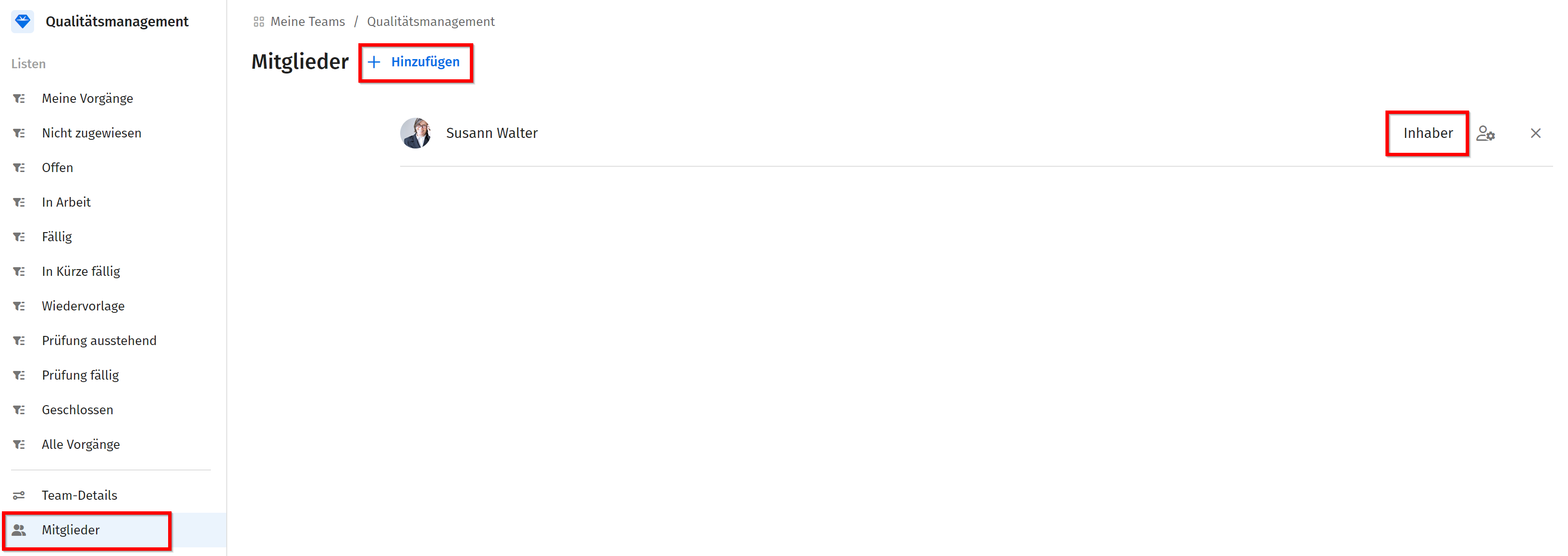
- Wähle die Nutzer und/oder Rollen aus, die zum Team hinzugefügt werden sollen. Du kannst mehrere gleichzeitig hinzufügen, sofern sie dieselbe Teamfunktion erhalten sollen.
- Wähle die gewünschte Teamfunktion: Inhaber, Bearbeiter oder Gast.
- Klicke auf Hinzufügen.
Teammitglieder werden in der Übersicht alphabetisch nach Nachnamen sortiert.
Teammitglieder bearbeiten
Möchtest du die Funktion eines einzelnen Teammitglieds ändern, klicke auf das Bearbeiten-Symbol neben dem Namen und wähle die neue Rolle aus.
Teammitglieder entfernen
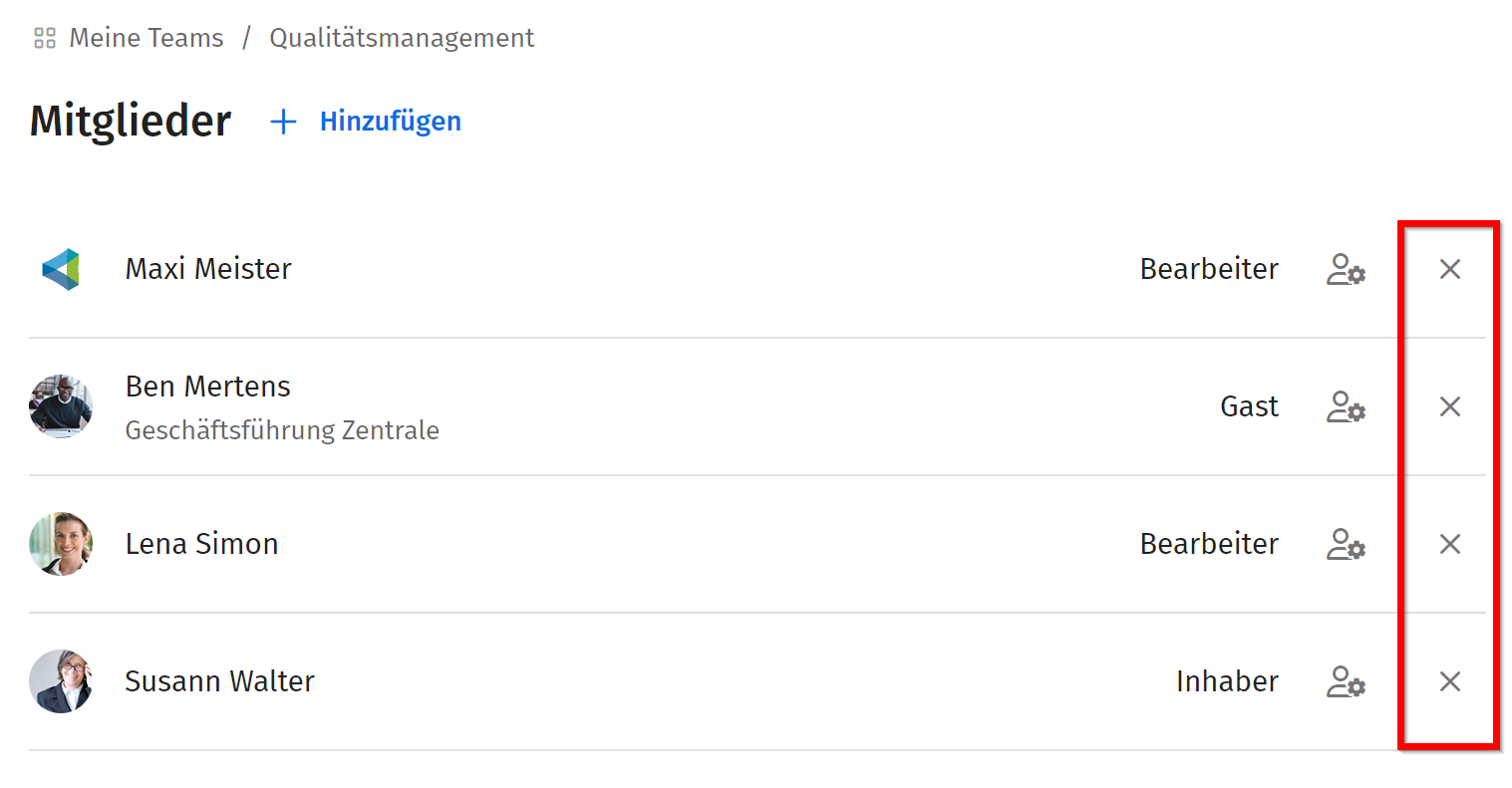
Klicke auf das Kreuz rechts neben dem jeweiligen Nutzernamen, um ihn aus dem Team zu entfernen.
Verwandte Artikel
War dieser Artikel hilfreich?
Das ist großartig!
Vielen Dank für das Feedback
Leider konnten wir nicht helfen
Vielen Dank für das Feedback
Feedback gesendet
Wir wissen Ihre Bemühungen zu schätzen und werden versuchen, den Artikel zu korrigieren