Dieser Artikel zeigt dir, wie du Dateien an einen Vorgang anhängst und Vorgänge sowie Handbuchinhalte miteinander verknüpfst.
Dateianhänge
Dateianhänge hinzufügen
Du kannst einem Vorgang an verschiedenen Stellen Dateien hinzufügen:
- Direkt im Fenster zum Erstellen eines Vorgangs
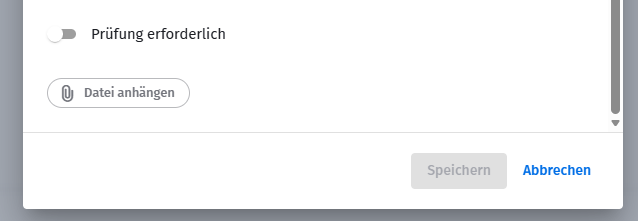
- An einem bereits erstellten Vorgang durch Klick auf Datei anhängen.

- Per Drag & Drop der Datei in den Vorgang.
Dateianhänge herunterladen
Klicke auf einen angehängten Dateinamen, um die Vorschau zu öffnen und die Datei herunterzuladen.

Dateianhänge löschen
Klicke auf das Papierkorbsymbol, um einen Dateianhang zu löschen.

Vorschau von Dateianhängen
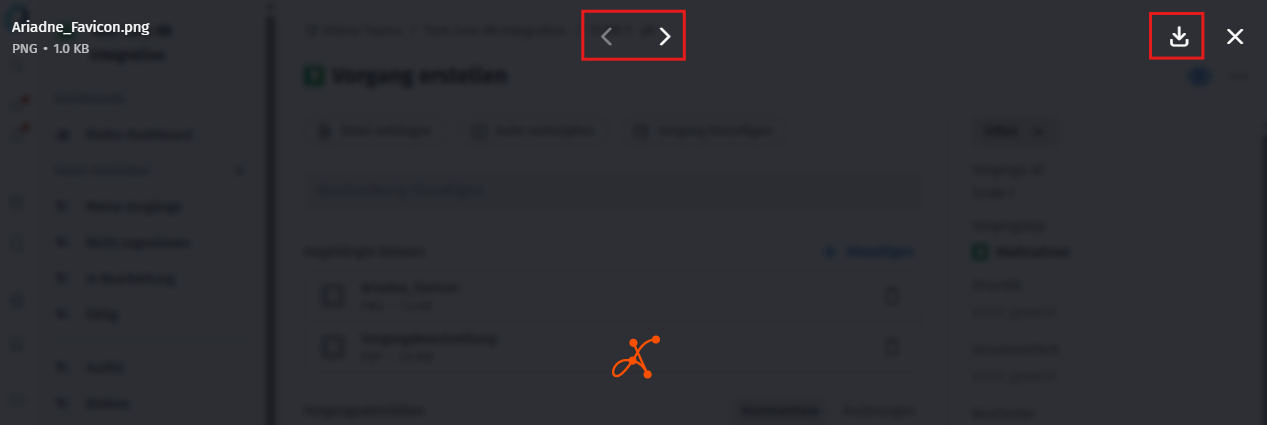
Dateianhänge im Format JPG und PDF lassen sich per Klick über eine Vorschau öffnen und von dort auch herunterladen. Mit den Pfeiltasten wechselst du zwischen mehreren Anhängen.
Vorgang verknüpfen
Du kannst Vorgänge über Vorgang verknüpfen oder im Bereich Verknüpfte Vorgänge über Hinzufügen miteinander verknüpfen. Die Suche funktioniert teamübergreifend nach Betreff oder nach Vorgangsnummer.

Inhalte verknüpfen
Über Seite verknüpfen kannst du Elemente aus dem Handbuch mit dem Vorgang verknüpfen.

Verwandte Artikel
War dieser Artikel hilfreich?
Das ist großartig!
Vielen Dank für das Feedback
Leider konnten wir nicht helfen
Vielen Dank für das Feedback
Feedback gesendet
Wir wissen Ihre Bemühungen zu schätzen und werden versuchen, den Artikel zu korrigieren