Auditvorlagen ermöglichen es dir, wiederkehrende Audits auf Basis eines immer gleichen Fragenkatalogs durchzuführen. Dieser Artikel zeigt dir, wie du Auditvorlagen anlegst, den Fragenkatalog aufbaust und ihn bei Bedarf per Excel-Datei importierst.
Auditvorlagen anlegen
In den Auditvorlagen legst du eine Vorlage für einen typischen Audit an.
- Öffne im Team-Menü den Bereich Auditvorlagen.
- Klicke auf +Vorlage erstellen
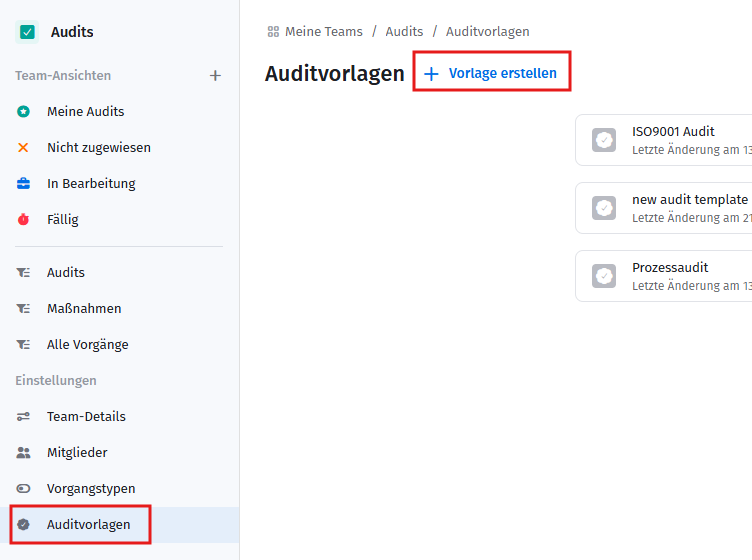
- Trage Titel und Beschreibung ein, damit du die Vorlage später leicht wiederfindest.
- Klicke auf Speichern.
- Erstelle anschließend deinen passenden Fragenkatalog oder importiere einen fertigen Fragenkatalog.
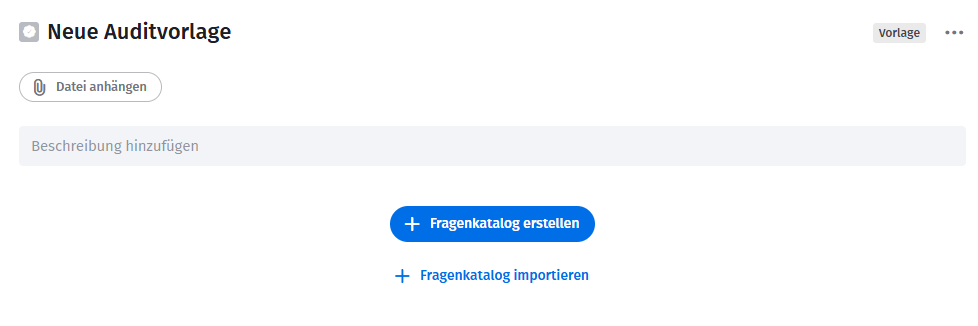
Über Datei anhängen kannst du der Vorlage zusätzliche Informationen mitgeben, zum Beispiel Hinweise oder Erläuterungen eines externen Auditors. Diese Anhänge werden bei Verwendung der Vorlage automatisch an den erstellten Audit-Vorgang übernommen.
Fragenkatalog aufbauen
Der Fragenkatalog wird in der Auditvorlage erstellt und kann später am Audit-Vorgang ausgewählt werden. Er besteht aus Abschnitten, die wiederum Fragen enthalten.
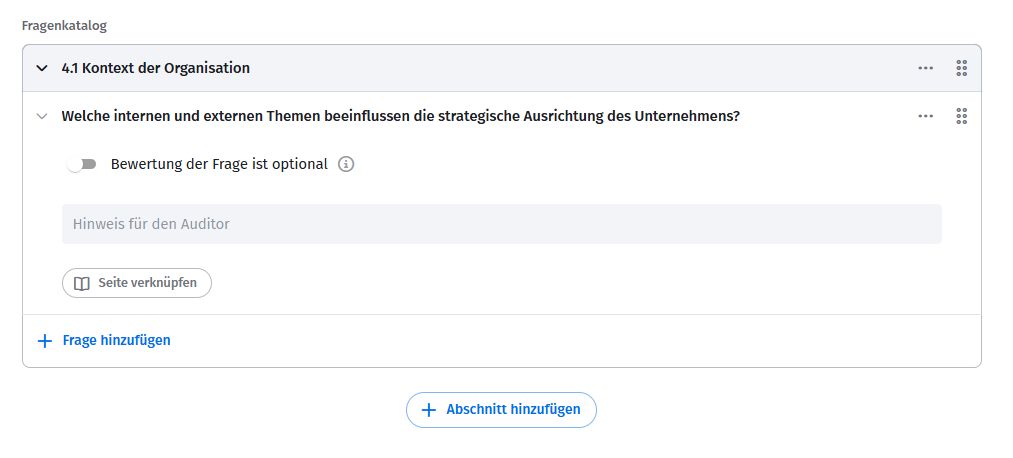
Jede Frage hat folgende Eigenschaften:
- Titel der Frage
- Festlegung, ob die Frage beantwortet werden muss oder vom Auditor ausgelassen werden kann (optional)
- Hinweistext, der dem Auditor unter der Frage angezeigt wird
- Möglichkeit, Seiten zu verknüpfen
Die Option Seite verknüpfen steht dir sowohl am Audit selbst als auch an einzelnen Fragen zur Verfügung. So kannst du passende Handbuchinhalte bereits in der Vorlage hinterlegen – auch diese werden bei Verwendung der Vorlage in den eigentlichen Audit übernommen.
Fragenkatalog bearbeiten und löschen
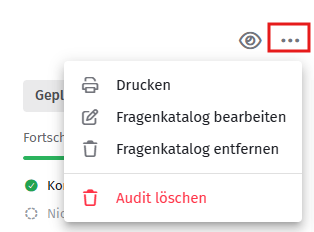
Nachdem der Fragenkatalog angelegt wurde, kannst du ihn nachträglich bearbeiten oder löschen. Nutze dazu das 3-Punkte-Menü mit den Optionen Drucken, Fragenkatalog bearbeiten und Fragenkatalog entfernen.
Fragenkatalog ins Auditmodul importieren
Vorbereitete Fragenkataloge lassen sich einfach als Excel-Datei importieren. Das spart Zeit und sorgt für einen einheitlichen Standard in deinen Audits.
Schritt für Schritt
- Neue Auditvorlage anlegen: Öffne das Auditmodul und lege eine neue Auditvorlage in deinem Team an. Vergib Titel und Beschreibung.
- Auf "Fragenkatalog importieren" klicken: In der Vorlage findest du die Option Fragenkatalog importieren. Klicke darauf, um den Import-Assistenten zu starten
- Vorbereitete Excel-Datei auswählen: Wähle die Datei von deinem Computer aus oder nutze Drag & Drop. Achte darauf, dass sie im Format xlsx oder xls vorliegt.
- Nutze hierzu die Excel-Vorlage am Ende des Hilfe-Artikels.
- Hochladen und prüfen: Lade die Datei über Importieren hoch und prüfe anschließend, ob alle Abschnitte und Fragen wie gewünscht übernommen wurden. Bei Bedarf kannst du sie direkt in der Vorlage noch anpassen.
- Vier Spalten erforderlich: Der Import erwartet die Spalten Abschnitt (max. 300 Zeichen), Frage (max. 300 Zeichen), Hinweis (max. 100.000 Zeichen) und Optional.
- Spalten A und B müssen befüllt sein: "Abschnitt" und "Frage" sind Pflichtspalten. Nur korrekt benannte Spalten werden erkannt – bei Abweichungen schlägt der Import fehl.
- Optional wird über 0 bzw. 1 gesteuert: Setze eine 1 in die entsprechende Zelle in Spalte D, um eine Frage als optional zu kennzeichnen.
- Leere Zeilen werden ignoriert: Zeilen ohne Inhalt werden beim Import einfach übersprungen.
- Keine Sonderzeichen oder Emojis verwenden: Zeichen wie & % # ; „" oder Emojis können beim Einlesen Probleme verursachen und sollten entfernt werden.
Verwandte Artikel
War dieser Artikel hilfreich?
Das ist großartig!
Vielen Dank für das Feedback
Leider konnten wir nicht helfen
Vielen Dank für das Feedback
Feedback gesendet
Wir wissen Ihre Bemühungen zu schätzen und werden versuchen, den Artikel zu korrigieren