So hältst du Feststellungen sauber fest, behältst den Überblick über den Fortschritt und hast das Ergebnis am Ende druckfertig, ohne das Audit dafür abbrechen zu müssen.
Voraussetzungen
- Das Audit wurde angelegt und ein Fragenkatalog ist hinterlegt
- Du bist als Auditor eingetragen
Fragen beantworten
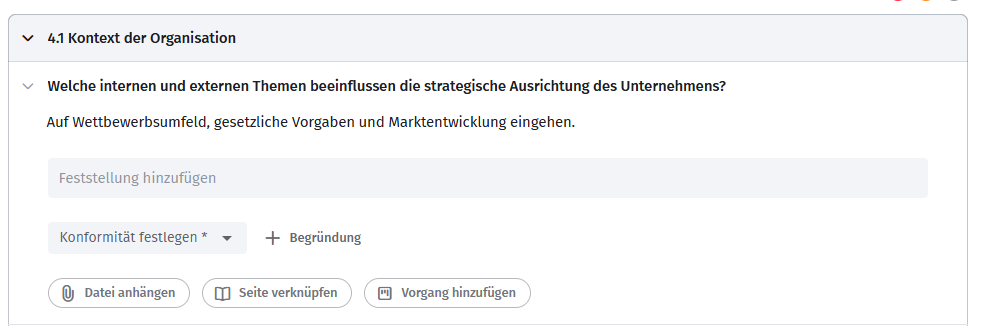
Der Fragenkatalog wird im Inhaltsbereich des Vorgangs unterhalb der Beschreibung angezeigt. Bearbeite jede Frage einzeln. Du siehst jeweils die Frage selbst und einen Hinweistext dazu.
Trage für jede Frage folgende Informationen ein:
- Feststellung: Der Ist-Zustand, den du vorgefunden hast.
- Bewertung: Wähle den Wert, der am besten beschreibt, was du vorgefunden hast.
- Begründung: Deine Begründung für die gewählte Bewertung.
| Bewertung | Bedeutung |
|---|---|
| Konform | Die Ist-Situation entspricht den Vorgaben. |
| Anmerkung | Die Ist-Situation entspricht prinzipiell den Vorgaben, du hast aber eine Anmerkung oder einen Verbesserungsvorschlag. |
| Nebenabweichung | Die Ist-Situation weicht geringfügig von den Vorgaben ab. |
| Hauptabweichung | Die Ist-Situation weicht erheblich von den Vorgaben ab. |
| Nicht relevant | Die Frage wird nicht beantwortet. Nur möglich, wenn die Frage bei der Definition des Fragenkatalogs als optional markiert wurde. |
Zusätzlich kannst du an jede Frage Dateien anhängen, Seiten verknüpfen und andere Vorgänge verknüpfen, um Belege oder weiterführende Informationen direkt an der Frage zu hinterlegen.

Fortschritt im Blick behalten
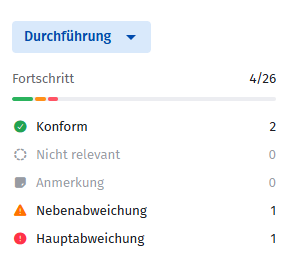
Im rechten Panel siehst du jederzeit, wie weit du im Fragenkatalog bist, ohne alle Fragen einzeln durchzuscrollen. Die Fortschrittsanzeige nutzt dieselbe Farblogik wie die Bewertungen, sodass du auf einen Blick erkennst, wo noch offene oder kritische Punkte liegen.
Kommentieren und verknüpfen
Unterhalb des Fragenkatalogs kannst du über Kommentare mit deinem Team kommunizieren, um Rückfragen zu klären oder Zwischenergebnisse zu teilen. Außerdem stehen dir für das gesamte Audit folgende Optionen zur Verfügung:
- Datei anhängen
- Seiten verknüpfen
- Vorgang verknüpfen
Audit exportieren oder drucken
Wenn du das Audit abgeschlossen hast, kannst du das Ergebnis als PDF speichern oder drucken, zum Beispiel für die Auditdokumentation oder als Nachweis für externe Auditoren.
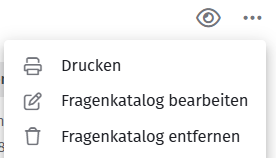
Öffne dazu das 3-Punkte-Menü oben rechts in der Auditansicht und wähle Drucken. Über die Browser-Druckfunktion kannst du das Audit dann drucken oder als PDF speichern.
Über dasselbe Menü kannst du außerdem den Fragenkatalog bearbeiten oder entfernen und das gesamte Audit löschen.
Verwandte Artikel
War dieser Artikel hilfreich?
Das ist großartig!
Vielen Dank für das Feedback
Leider konnten wir nicht helfen
Vielen Dank für das Feedback
Feedback gesendet
Wir wissen Ihre Bemühungen zu schätzen und werden versuchen, den Artikel zu korrigieren