In Ariadne, you can add clickable areas to images and link them to Ariadne content or external URLs – depending on where you want users to go.
Prerequisites
- You're in the edit mode of a page
Step 1: Upload image
Add your image to the page via drag and drop or by clicking Upload image.
Step 2: Open Image Map
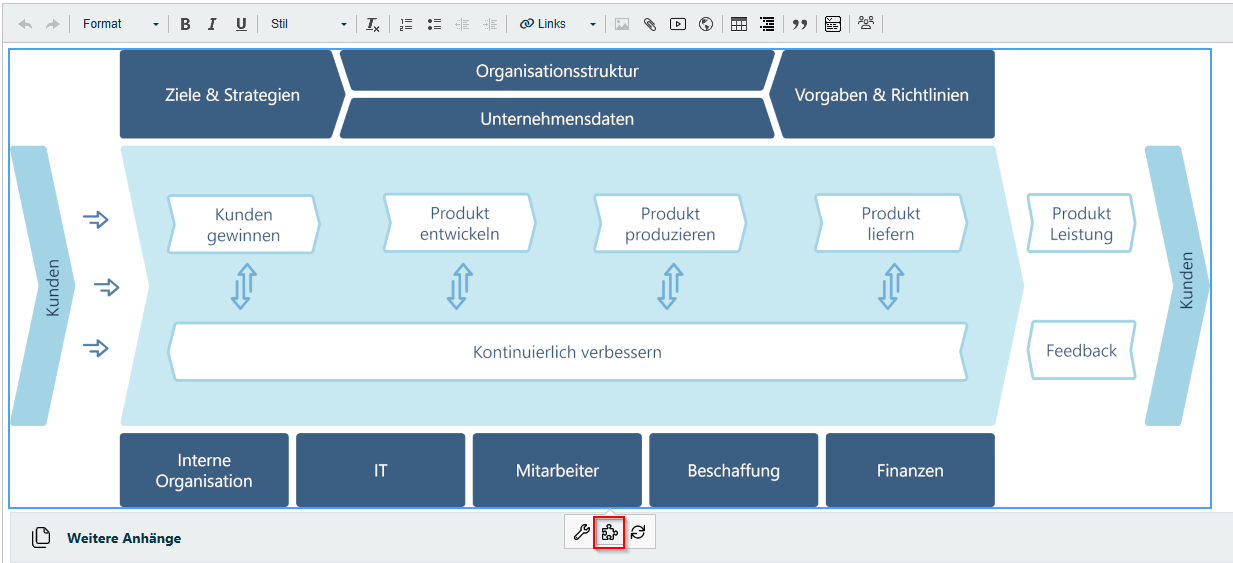
Click on the image and then click Insert/edit Image Map at the bottom edge of the image – it's the small puzzle-piece icon.
Step 3: Define clickable areas
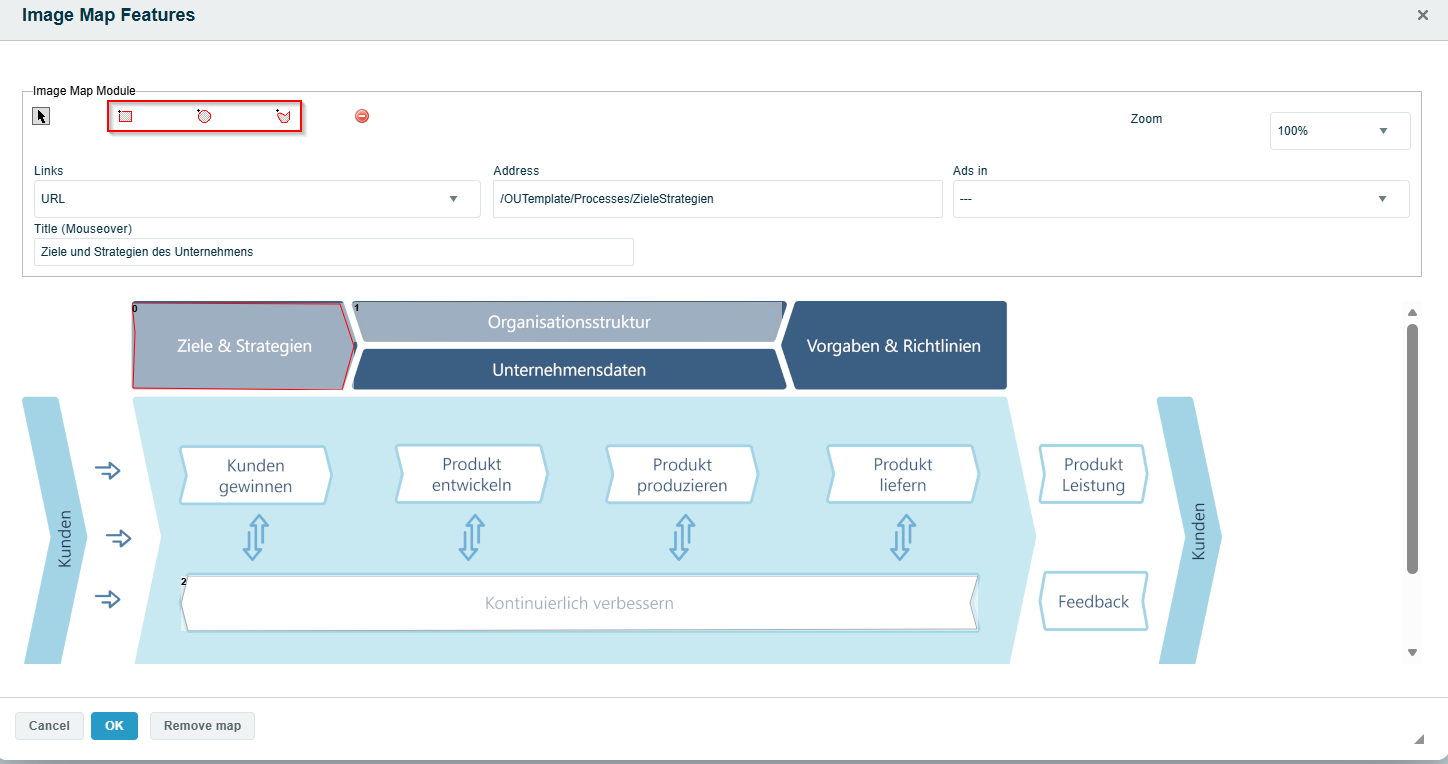
Choose a shape and draw the areas on the image that you want to make clickable. You can choose from three shapes:
- Rectangle: Two clicks for opposite corners
- Circle: Two clicks for center and radius
- Polygon: Each click sets a corner. Double-click or Shift + click to finish the shape
Step 4: Link the area
Option A: Link to an external URL
If users should click to an external link:
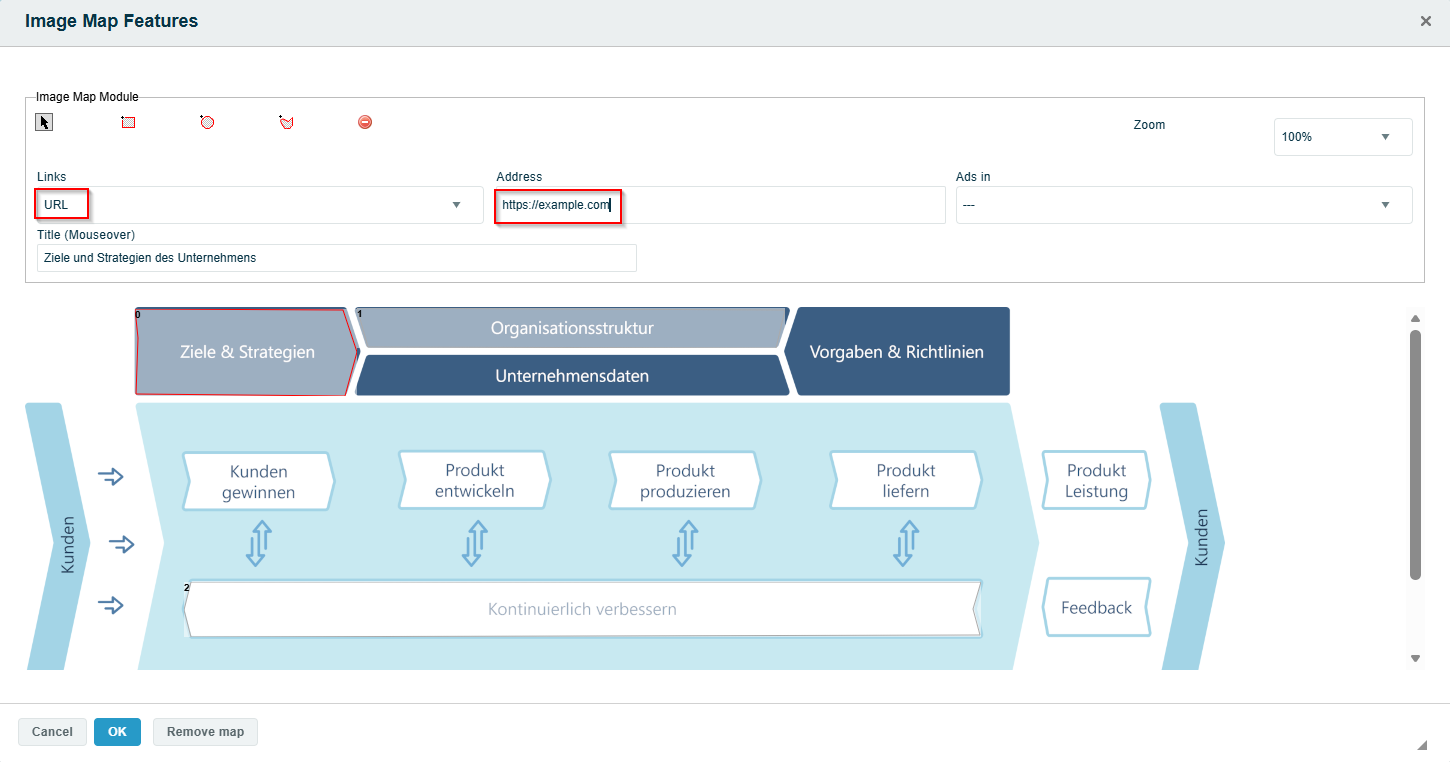
- Select URL in the Links field
- Copy the complete URL (e.g.,
https://example.com) and paste it into the Address field - The URL is recognized and ready to use immediately
Option B: Link to Ariadne content
If users should navigate to an Ariadne page or module:
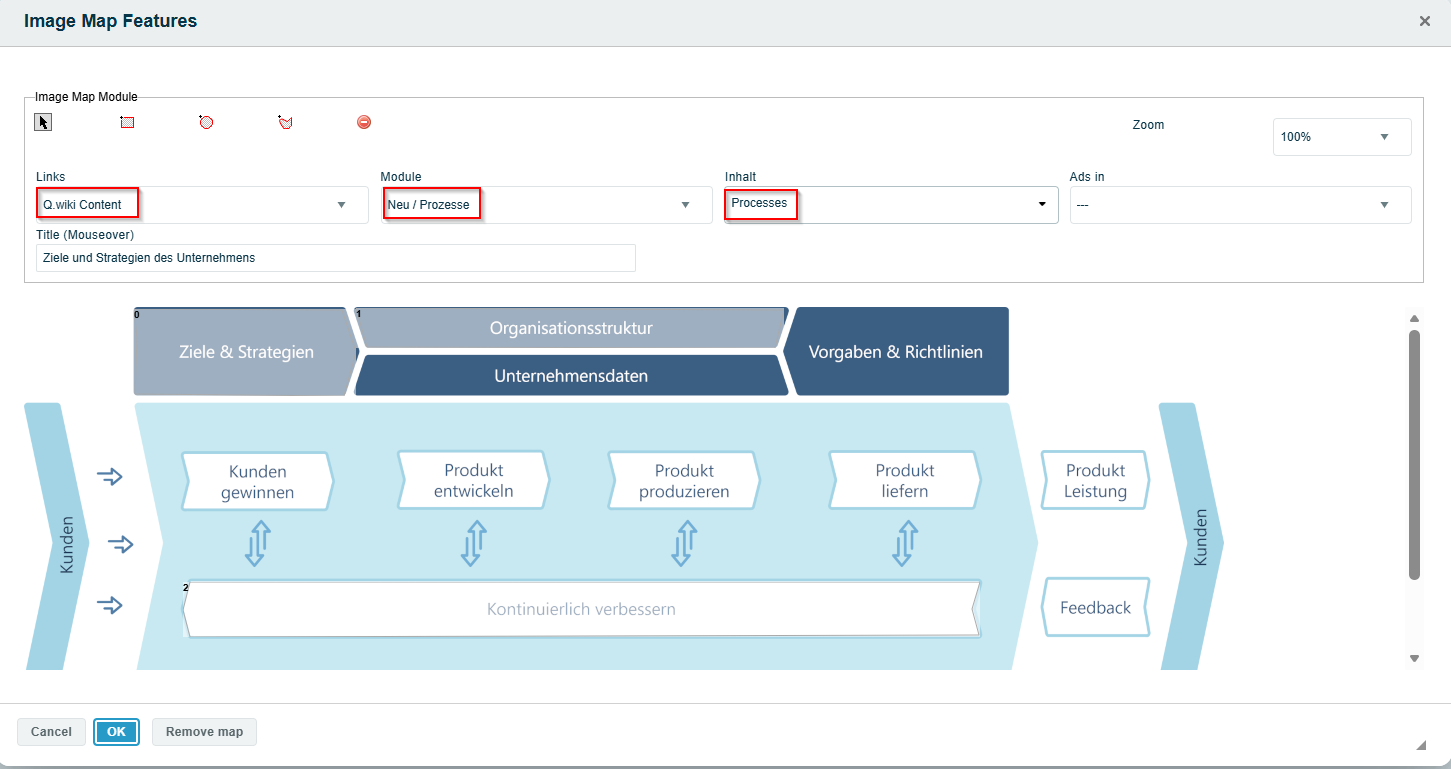
- Select Ariadne content in the Links field
- Choose the Module (e.g., Process overview, Work instruction, Form)
- Search for and select the Content – you can find published pages and drafts
- The link is saved automatically and remains valid, even after the page is published
Mouseover text (optional – both options)
Enter a title – this text appears when users hover over the clickable area with their mouse.
Open in (optional – both options)
In the Open in field, choose how the page or URL should open:
- This window: Opens in the same tab
- New window: Opens in a new tab
- Top window: Opens in the top window – relevant if Ariadne is embedded in a frame
Step 5: Add more areas
Repeat Step 3 and 4 for each additional area you want to make clickable.
Step 6: Save Image Map
Click OK to save all linked areas.
Result
Your image now has clickable areas. Users can click on the regions and navigate to Ariadne pages or external websites – depending on how you linked each area.
Related articles
Was this article helpful?
That’s Great!
Thank you for your feedback
Sorry! We couldn't be helpful
Thank you for your feedback
Feedback sent
We appreciate your effort and will try to fix the article