Ein Team ist ein thematisch abgegrenzter Bereich im Vorgangsmanagement, in dem mehrere Nutzer gemeinsam an Vorgängen arbeiten. Dieser Artikel zeigt dir, wie du ein Team erstellst, bearbeitest und bei Bedarf löschst.
Voraussetzungen
- Du bist als Key-User hinterlegt.
Team erstellen
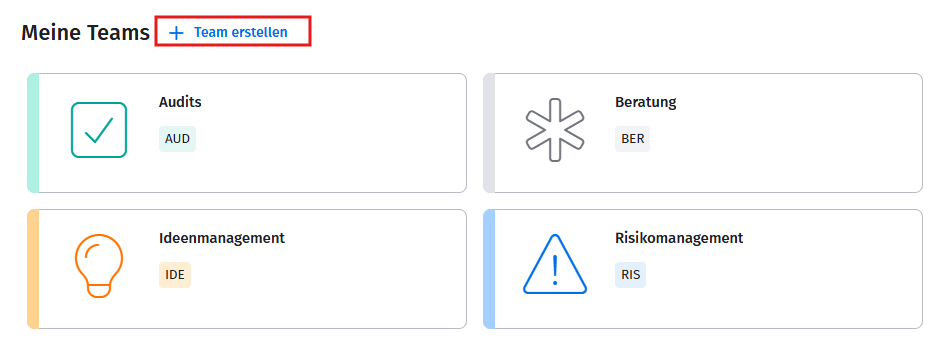
- Öffne deine Team-Übersicht über Meine Teams und klicke auf + Team erstellen.
- Wähle ein Team-Iconund eine Farbe aus der Icon-Bibliothek.
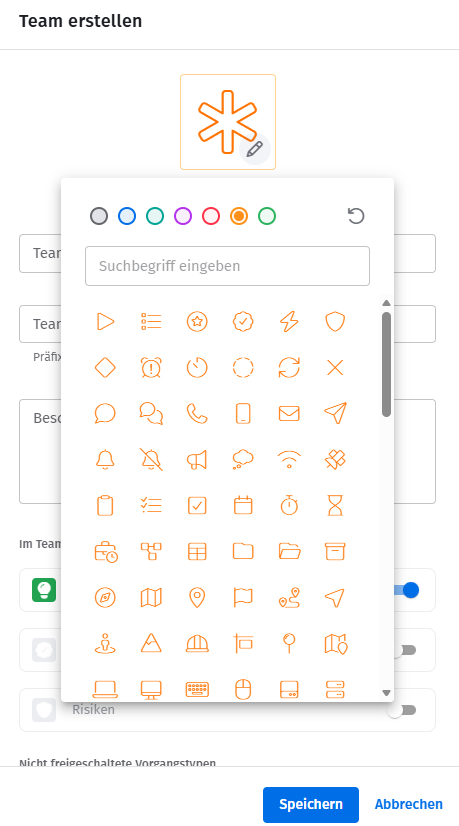
- Trage den Teamnamen ein.
- Trage das Teamkürzel ein. Es bildet das Präfix für alle Vorgangs-IDs in diesem Team, z. B. QM-136.Wichtig: Das Teamkürzel kann nach dem Speichern nicht mehr geändert werden.
- Trage optional eine Beschreibung ein, z. B. zur Aufgabe oder Zielsetzung des Teams.
- Klicke auf Speichern.
Teamdetails bearbeiten
Als Key-User kannst du Icon, Farbe, Namen und Beschreibung eines bestehenden Teams jederzeit anpassen. Gehe dazu im Team-Menü auf Team-Details.
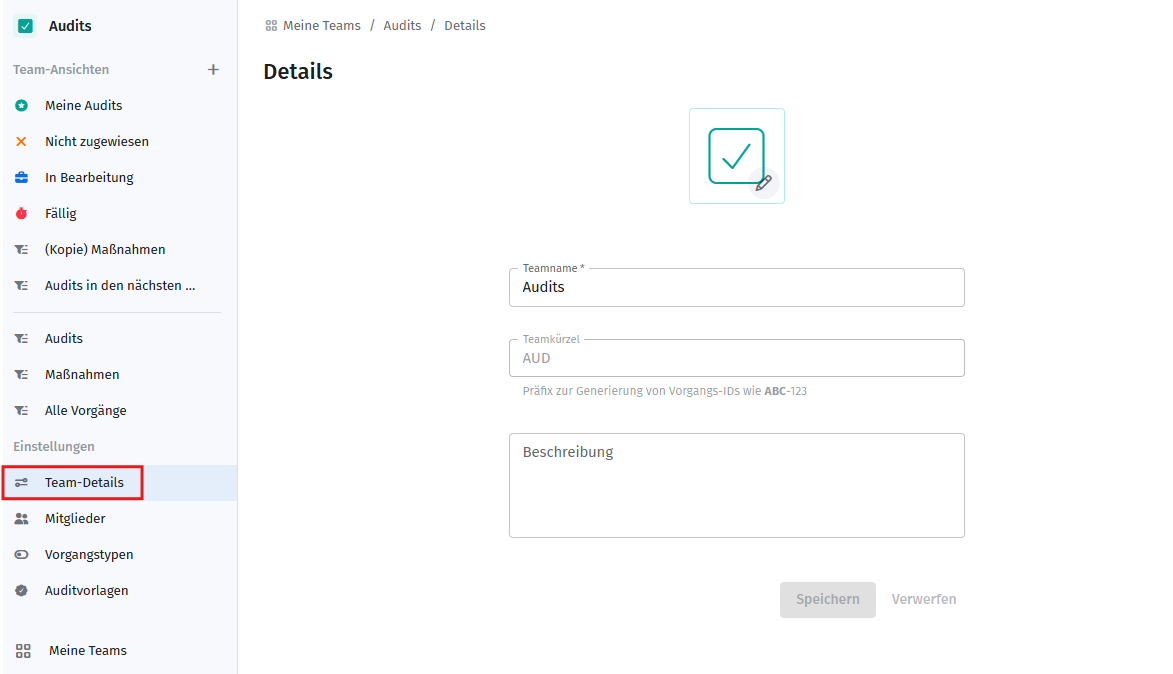
Hier kannst du außerdem festlegen, ob das Team Zugriff auf die Module Maßnahmen und/oder Audits hat.
Team löschen
Achtung: Beim Löschen eines Teams werden alle damit verbundenen Vorgänge unwiderruflich mitgelöscht.
- Öffne die Team-Details und klicke auf Team löschen.
- Gib zur Bestätigung das Teamkürzel ein.
- Klicke auf Löschen.
Verwandte Artikel
War dieser Artikel hilfreich?
Das ist großartig!
Vielen Dank für das Feedback
Leider konnten wir nicht helfen
Vielen Dank für das Feedback
Feedback gesendet
Wir wissen Ihre Bemühungen zu schätzen und werden versuchen, den Artikel zu korrigieren