Dieser Artikel zeigt dir, wie du einen neuen Vorgang anlegst und welche Felder dabei zur Verfügung stehen.
Team auswählen
Bist du bereits als Inhaber, Bearbeiter oder Gast einem Team zugeordnet, siehst du deine Teams auf der Übersichtsseite.
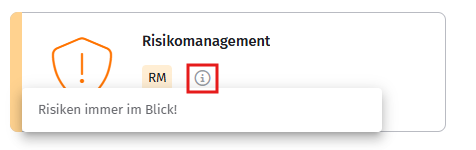
Ist der Teamname nicht selbsterklärend, klicke auf das Info-Symbol, um die Teambeschreibung anzuzeigen.
Klicke auf die Team-Kachel, um das Team zu öffnen.
Vorgang anlegen
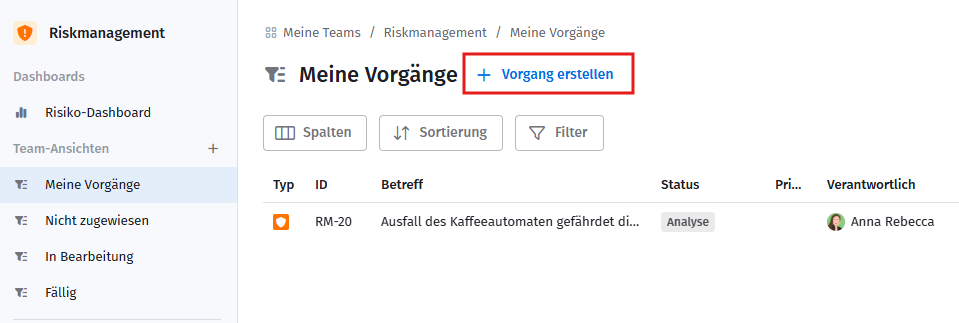
- Öffne ein Team und klicke auf + Neuer Vorgang.
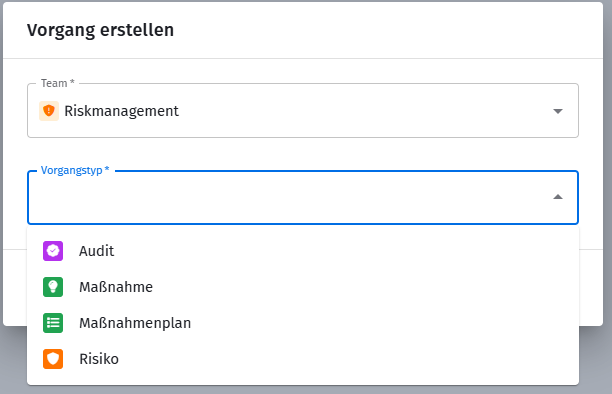
- Das Team ist bereits vorausgefüllt. Du kannst aber auch zwischen den Teams wechseln. Wähle den gewünschten Vorgangstyp.
- Trage einen aussagekräftigen Betreff ein. Dieses Feld ist ein Pflichtfeld.
Vorgangsfelder festlegen
Status
Jedem Vorgang kann der Status individuell zugeordnet werden. Die Statuskategorien unterscheiden sich je nach Vorgangsart.
Inhaber und Bearbeiter des Teams können die Statushistorie über den Reiter Änderungen einsehen.

Verantwortlicher
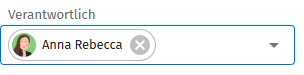
Der Verantwortliche ist für den Vorgang insgesamt verantwortlich und wird bei Fristen benachrichtigt.
Bearbeiter
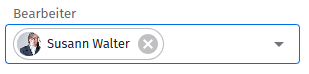
Der Bearbeiter ist für die inhaltliche Bearbeitung des Vorgangs verantwortlich und wird ebenfalls bei Fristen benachrichtigt.
Vertraulich
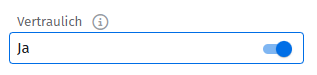
Die Vertraulichkeit ist standardmäßig auf Ja gesetzt. In diesem Fall ist der Vorgang nur für Inhaber und Bearbeiter des Teams sichtbar.
Steht die Vertraulichkeit auf Nein, können alle Teammitglieder – auch ein Gast – den Vorgang sehen.
Wiedervorlage
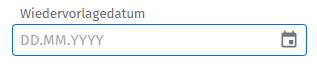
Das Wiedervorlagedatum kannst du ebenfalls im Format TT.MM.JJJJ eintragen oder über den Datumswähler auswählen. Standardmäßig ist kein Wiedervorlagedatum gesetzt.
Verwandte Artikel
War dieser Artikel hilfreich?
Das ist großartig!
Vielen Dank für das Feedback
Leider konnten wir nicht helfen
Vielen Dank für das Feedback
Feedback gesendet
Wir wissen Ihre Bemühungen zu schätzen und werden versuchen, den Artikel zu korrigieren