Ein Maßnahmenplan bündelt mehrere Maßnahmen in einer übergeordneten Struktur und zeigt dir deren gemeinsamen Fortschritt. So behältst du z. B. bei einem Verbesserungsprojekt alle zugehörigen Maßnahmen im Blick.
Voraussetzungen
- Zugang zu einem Team, in dem der Vorgangstyp Maßnahmenplan aktiviert ist
Schritt-für-Schritt
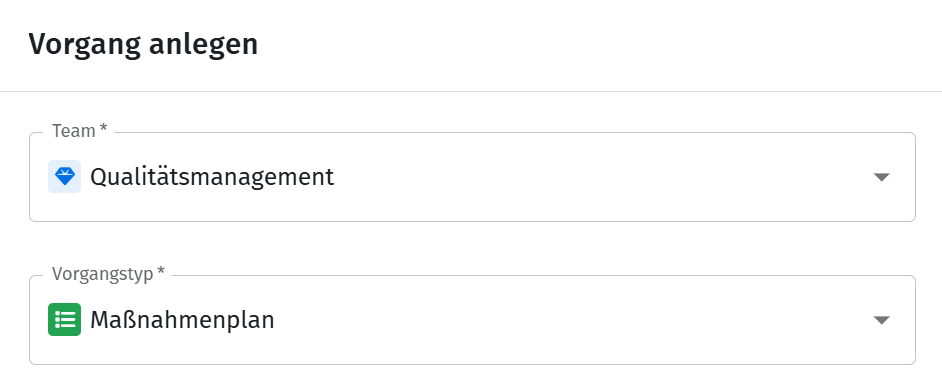
- Öffne dein Team und klicke auf Neuer Vorgang.
- Wähle als Vorgangstyp Maßnahmenplanaus und vergib einen aussagekräftigen Betreff.
- Klicke im neu erstellten Maßnahmenplan auf Vorgang verknüpfen.
- Suche nach Betreff oder Vorgangsnummer. Die Suche ist teamübergreifend.
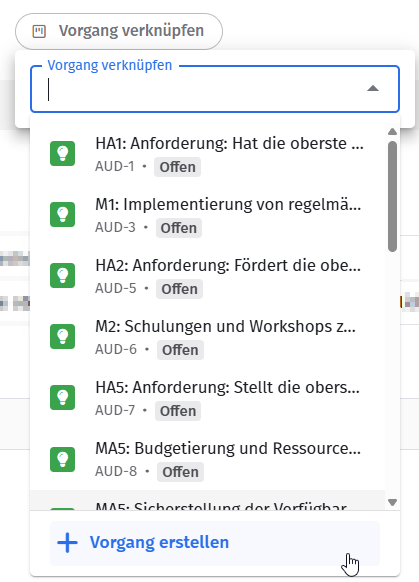
- Wähle einen passenden Vorgang aus der Liste aus, oder klicke auf Vorgang erstellen, um direkt eine neue Maßnahme anzulegen.
- Wiederhole Schritt 3 bis 5 für alle Vorgänge, die zum Plan gehören sollen.
- Sortiere die verknüpften Vorgänge bei Bedarf per Drag & Drop, um z. B. eine Priorisierung abzubilden.
Gut zu wissen: Es werden dir nur Vorgänge angezeigt, auf die du mindestens Leserecht besitzt. Die Verknüpfung wirkt bidirektional – der verknüpfte Vorgang weist damit ebenfalls auf den Maßnahmenplan hin.
Ergebnis
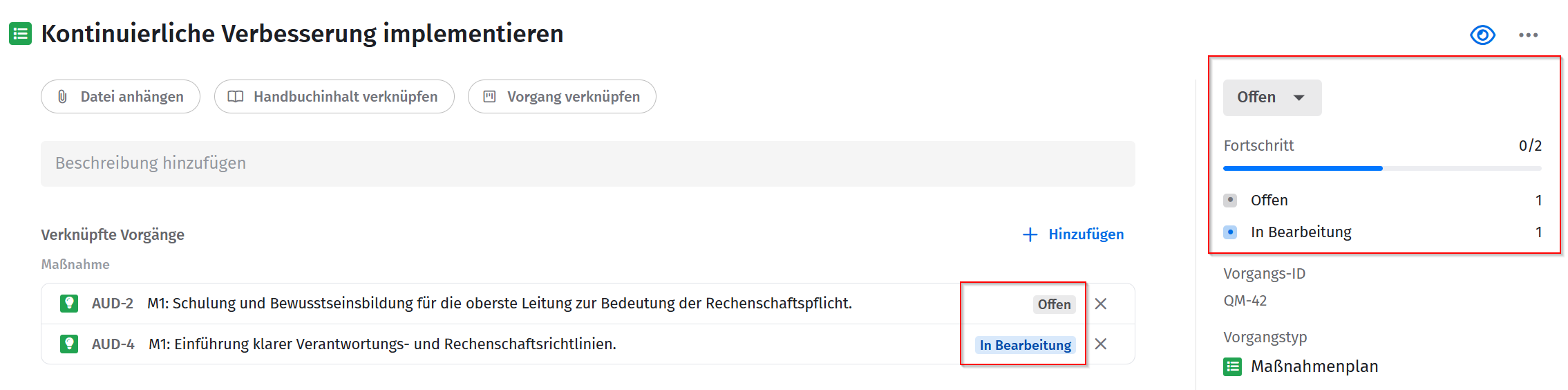
Der Fortschritt aller verknüpften Vorgänge wird automatisch in der Seitenleiste des Maßnahmenplans zusammengefasst, z. B. wie viele Vorgänge offen oder in Bearbeitung sind.
Verwandte Artikel
War dieser Artikel hilfreich?
Das ist großartig!
Vielen Dank für das Feedback
Leider konnten wir nicht helfen
Vielen Dank für das Feedback
Feedback gesendet
Wir wissen Ihre Bemühungen zu schätzen und werden versuchen, den Artikel zu korrigieren