Skills are personal data. That's why not everyone sees everything in skills management: everyone sees themselves, supervisors see their team, and only authorized people see the entire matrix.
Who sees what
| Who | Sees | Can |
|---|---|---|
| Everyone | Only themselves, in their own user profile | Record their own proofs |
| Supervisor | Themselves and everyone who reports to them directly or indirectly | Record and withdraw proofs for their team, set exemptions |
| Group with "Read only" | Everything in the module | Read only, for example for auditors |
| Group with "Read and edit" | Everything in the module | Edit everything, for example create skills and record proofs for everyone |
| Module responsibles | Everything in the module | Edit everything and also change the module settings |
If someone has several permissions, the strongest one always applies. The matrix, the overview and the tasks only show the people you are allowed to see.
Grant access permissions
- In the sidebar, click ··· next to Skills management and select Module settings.
- On the left, open Module access permissions.
- Under Groups with access, click Add element and select the group.
- Set the permission: Read only or Read and edit.
- Click Save.
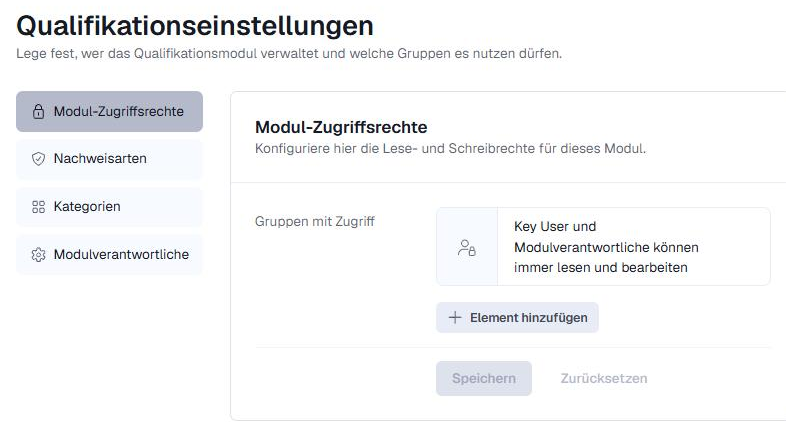
Key Users and module responsibles can always read and edit. In the module settings, you also manage the Proof types, the Categories and the Module responsible.
Define the supervisor
A person's supervisor is set in the Supervisor field in their user profile. Each person has exactly one supervisor. Everyone can see the field in the profile, like department or team.
There are three ways to fill in the field:
| Method | How it works | Suitable for |
|---|---|---|
| By hand | Under User profiles, open the person's profile, click Change next to Supervisor, select the person and click Save. | Smaller companies |
| With an AI assistant (MCP) | Give Claude or Copilot an org chart, for example. The assistant fills in the fields. This also makes it easy to apply later changes. | If you already have an org chart |
| Automatically from Microsoft Entra ID | The supervisor is synchronized from Entra ID via SCIM. Your IT department sets this up: the manager attribute must be mapped in the SCIM provisioning. The profile then shows "From AD", and the field cannot be changed by hand. Instructions: Synchronize the supervisor from Entra ID | Larger companies, from about 50 people |
Special cases
- Loop, for example A is B's supervisor and B is A's: This cannot be selected by hand. If a loop comes from Entra ID, Ariadne takes it over as delivered.
- The person themselves or an unknown person as supervisor: counts as no supervisor.
- Supervisor is deactivated: They are deactivated like any other user. There is no special rule.
- Entra ID connection is switched off: The last synchronized values remain but are no longer updated. A Key User can then change them by hand.
- Exemptions: Supervisors cannot exempt themselves from a skill.
Related articles
Was this article helpful?
That’s Great!
Thank you for your feedback
Sorry! We couldn't be helpful
Thank you for your feedback
Feedback sent
We appreciate your effort and will try to fix the article