ARIADNE PAGE MANAGEMENT Hand over many pages at onceWith the “Transfer page responsibility” tool, you hand over one person’s pages to another person in a single step. |
A typical question“A colleague is leaving at the end of the month. Who takes care of all their pages now?” If pages stay with someone who is no longer around, approval requests, notifications and review reminders reach no one. Instead of changing each page individually, you transfer the page responsibility for many pages at once. The tool is available to Key Users and module owners. |
|
TWO WAYS
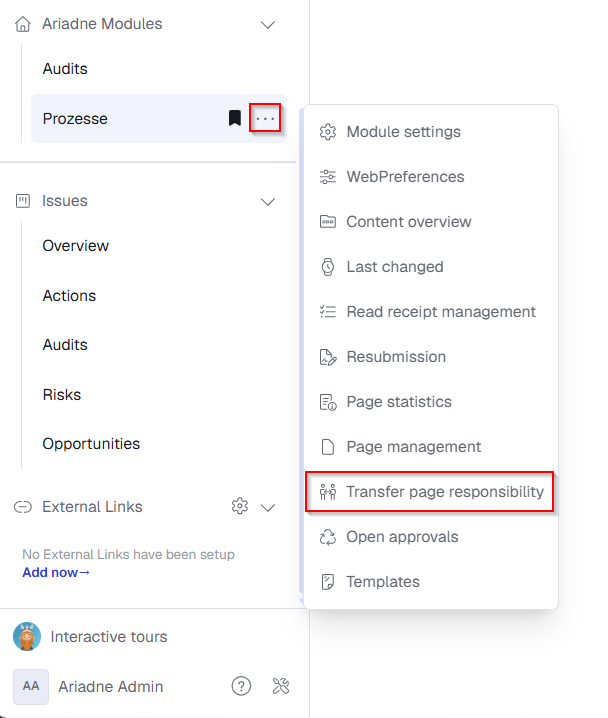
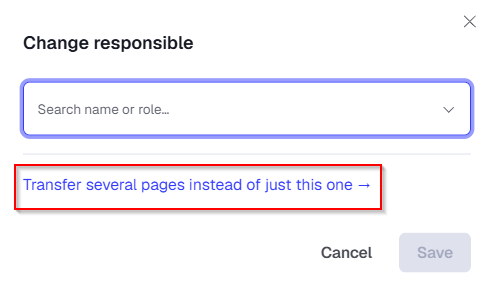
How to open the tool
You always work in one module. You can switch modules at the top of the tool.
| OPTION A From the module You start without a preselection.
| OPTION B From a page The filter is then already set to the currently responsible person.
|

IN FIVE STEPS
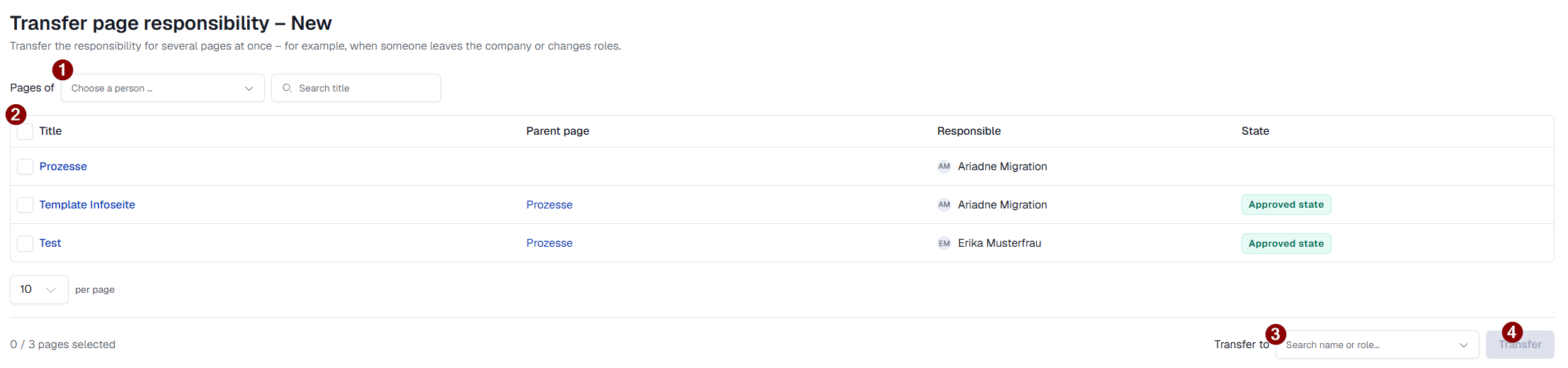
How to transfer the pages
The numbers in the image correspond to steps 1 to 4.
|
AFTER THE TRANSFER
What happens to each page
Each page is handled the same way as a single change in the page header.
Permissions The new person receives read and write permissions for the page if they do not have them yet. | Approvals Open approvals go to the new person. If an approval has already passed the content approval, it starts again. The confirmation dialog shows how many are affected. | |
Tasks Review reminders, read confirmations and open tasks go to the new person. Due dates stay the same. | Notification & history The new person is notified for each page, and an active previous owner is informed as well. The change is recorded in the page history. | |
| Important: You can transfer up to 100 pages per run. For more pages, repeat the process. Changing the filter or the table page clears your selection. |
Frequently asked questions
ARE ARCHIVED PAGES TRANSFERRED TOO?
No. Archived pages are not shown in the tool and are not transferred.
DOES THIS ALSO APPLY TO DRAFTS?
Yes. Approved pages and drafts are treated the same way.
WHAT IF SOMEONE IS CURRENTLY EDITING ONE OF THE PAGES?
The page is transferred anyway.
I ONLY WANT TO HAND OVER A SINGLE PAGE.
The pencil icon in the page header is all you need: Change page responsibility.
THE PERSON IS LEAVING THE COMPANY. WHAT ELSE DO I NEED TO DO?
After the transfer, you can deactivate the person. Here is how: Deactivate users.
Was this article helpful?
That’s Great!
Thank you for your feedback
Sorry! We couldn't be helpful
Thank you for your feedback
Feedback sent
We appreciate your effort and will try to fix the article