The approval workflow makes sure changes to your Ariadne pages are reviewed before everyone can see them. Here you'll learn how to submit a change proposal, how it gets approved and how to bring additional people into the approval when needed.
A new approval workflow has been available since June 2025. Which one you have depends on whether your system has already been migrated. This page covers both versions.
Which workflow do you have?

New approval workflow
Since June 2025
The workflow sits clearly in the right-hand sidebar. Approval requests become open tasks for the people responsible and stay there until they're done, so no approval gets lost.
How do you recognize it?
- In the right-hand sidebar, the top icon opens the approval workflow.

Previous approval workflow
Before June 2025
The workflow sits at the bottom of the page. Approval requests arrive by email or through the personal task list.
How do you recognize it?
- At the bottom of the page, the workflow appears in the “Status” row.
The differences at a glance
| What you want to know | New workflow | Previous workflow |
|---|---|---|
| Where do I find the workflow? | Top icon in the right-hand sidebar | Bottom of the page, “Status” row |
| How do I start the approval? | Submit proposal | Request approval and Change status |
| How are approvers notified? | Open task in the Task overview, optionally by email | Email and/or personal task list |
| Can I keep editing after submitting? | ✓ Yes | – No, the proposal is locked |
What changes when your system is migrated
When your system switches to the new workflow, this happens:
- All pending approvals are reset and restarted. The page owner automatically receives a new approval request.
- The migration appears in the page history as a revision by “Q.wiki Migration”.
- The new workflow fully supports custom approval workflows in your modules.
What you get with the new workflow:
- Better overview: The approval status is right there in the sidebar, with no scrolling needed.
- No forgotten approvals: Every request stays an open task until it's done.
- More flexibility: You can add up to five additional approvers, for example from data protection or IT security.
For more details, see the release notes (external).
Get changes approved (new workflow)
This is how a change proposal moves through approval:
| Stage | Who decides | What happens next |
|---|---|---|
| 1 Content approval | Page owner | Members of the QM Group receive a task. |
| 2 Formal approval | Members of the QM Group | The proposal becomes the new approved version. |
| Optional Additional approval | Up to five selected people, in parallel | The process only completes once everyone has approved. |
Create a change proposal
On the approved page, click Propose change. Ariadne creates a change proposal you can work on without affecting the approved version.

- Any user with edit rights can create and edit a change proposal.
- Each page has only one change proposal at a time. Several people can work on it one after another.
- You can keep editing the proposal after you've submitted it.
- Your changes only become part of the approved version once approval is complete.
- Once approval is complete, you can create a new change proposal.
Submit the proposal for approval
- Save your change proposal.
- Click the top icon in the right-hand sidebar to open the approval workflow.
- Review your changes with Compare with approved version.
- Click Submit proposal.
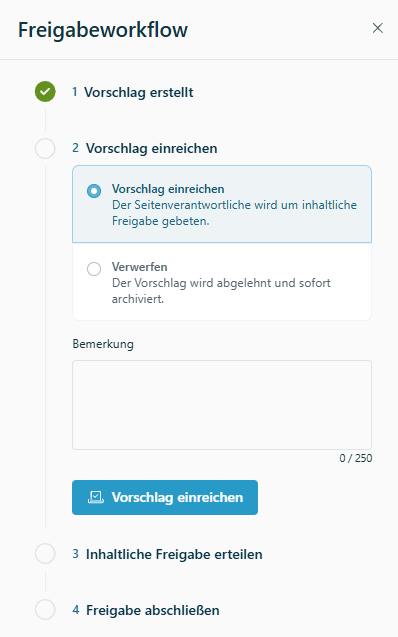
If you decide not to go ahead with the proposal, select Discard change proposal and then Change status. The proposal is archived and you can create a new one.
Give content approval
Once submitted, the page owner automatically receives a task in the Task overview. If they've set it up, they also get it by email.
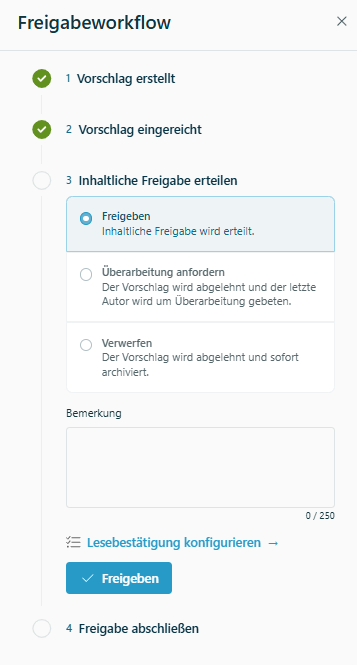
As page owner, use Compare with approved version to review what has changed, then give content approval.
Give formal approval
After content approval, all members of the assigned group automatically receive a task. By default, this is the QM Group.
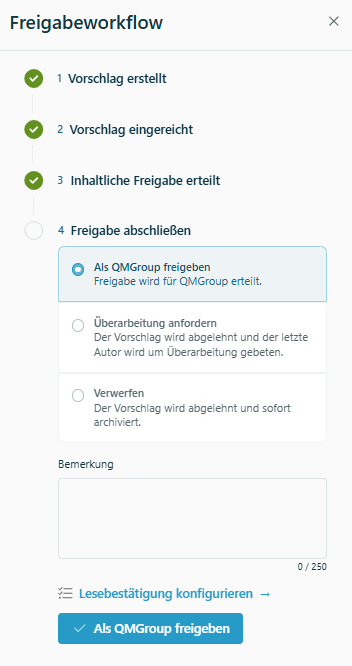
Review the changes with Compare with approved version and choose one of these options:
- Formally approve change proposal: The proposal becomes the new approved version and the version number goes up. A new change proposal can then be created.
- Request further revision: The last author is notified and can edit the proposal again. Everyone involved is informed.
- Discard change proposal: The approved version stays unchanged and the proposal is archived. Everyone involved is informed.
See who approved a page
Under “Approved by”, you first see the person who gave content approval, usually the page owner. Next to them is the QM Group member who gave formal approval.

Bring more people into the approval
If other departments should sign off in addition to the page owner and QM, you can add up to five additional approvers. This way, teams such as data protection or IT security see every change before it takes effect.
Enable additional approvers for a module
- Next to the module, click the three dots (⋯) and select Module settings.

- Go to the Approval workflowtab.
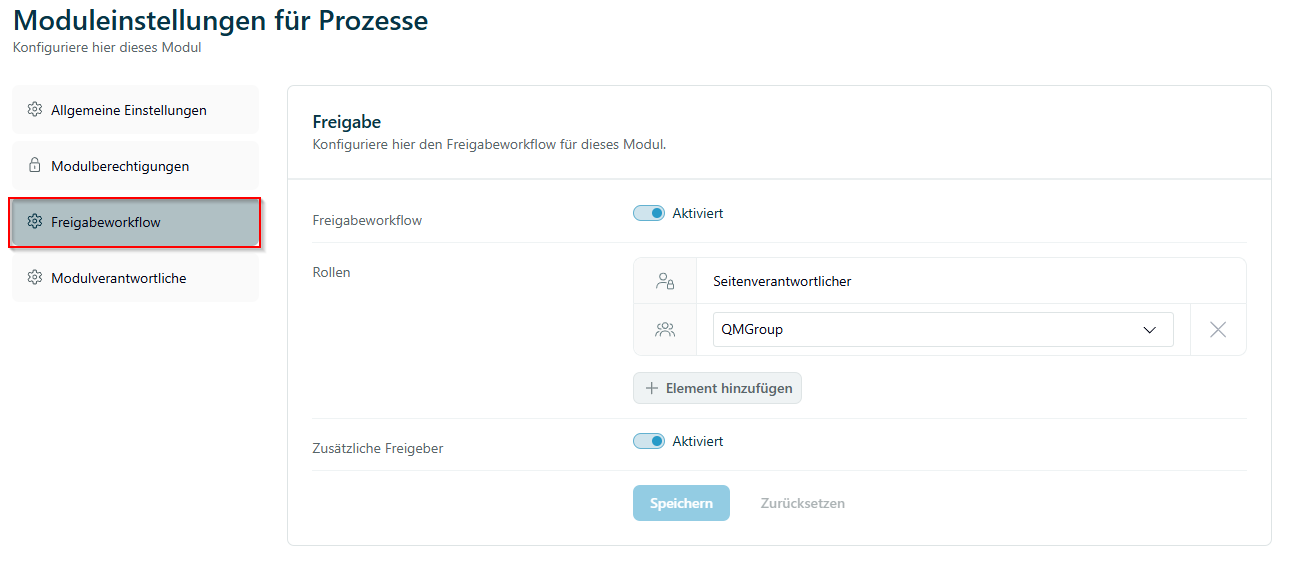
- Turn on the Additional approverstoggle.
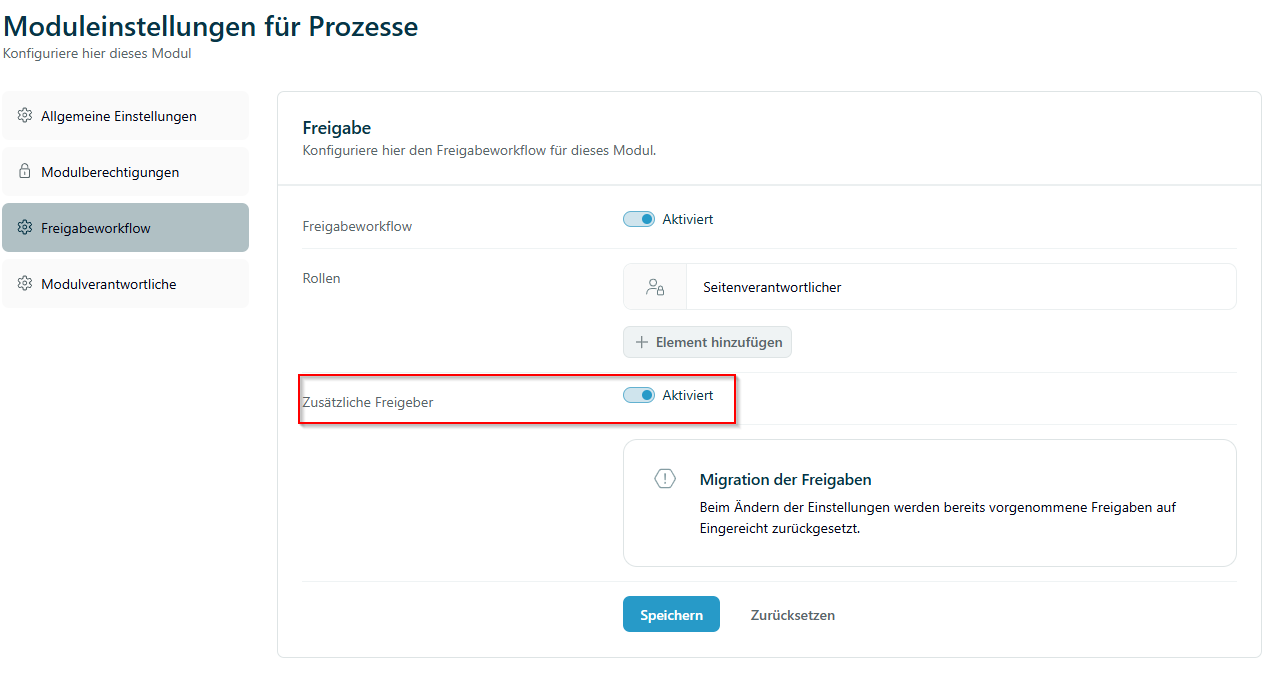
- Click Save. The setting applies immediately to all pages in the module.
Choose approvers for a page
- Open the page. The page header now shows an Additional approversfield.

- Click Add additional approvers. The Additional approverswindow opens.
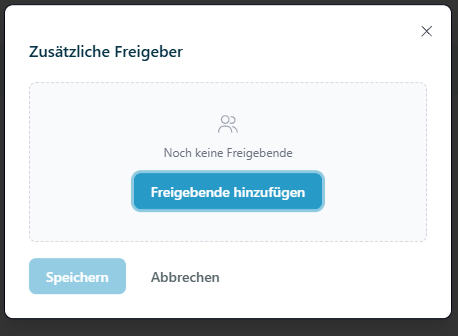
- Search for a name or pick people from the list. You can choose up to five approvers.
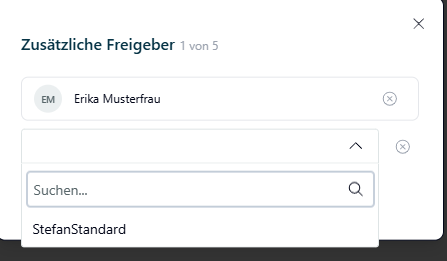
- Click Save. The selected approvers appear in the page header.
Track approval progress
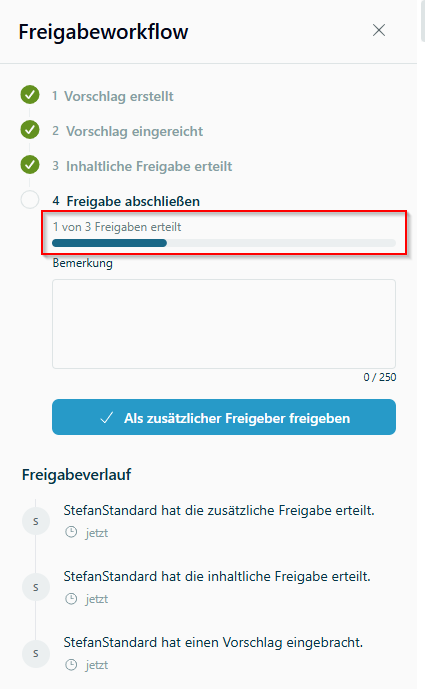
Once the change proposal is submitted, the approval workflow shows how many additional approvers have already approved, for example “1 of 3 approvals granted”. You can see at a glance who you're still waiting for.
Change or remove approvers
Click Additional approvers in the page header again. From there, you can remove people or replace them with others.
Get changes approved (previous workflow)
This section applies to you if your system hasn't been migrated to the new workflow yet.

Create a change proposal
On the approved page, click Propose change. Ariadne creates a change proposal.

- Any user with edit rights can create and edit a change proposal.
- Each page has only one change proposal at a time. Several people can work on it one after another.
- As soon as you request approval, the proposal is locked for editing.
- Your changes only become part of the approved version once approval is complete.
- Once approval is complete, you can create a new change proposal.
Request approval
- Save your change proposal.
- Scroll to the “Status” row at the bottom of the page.
- Review your changes with Compare with approved version.
- Select Request approval and click Change status.

If you decide not to go ahead with the proposal, select Discard change proposal and click Change status. The proposal is archived and you can create a new one.
Give content approval
The page owner automatically receives a message by email and/or in their personal task list.

Review the changes with Compare with approved version and decide:
- Approve content: The next stage, for example the QM department, is asked for approval.
- Request further revision: The last author is notified and can edit the proposal again.
- Discard change proposal: The approved version stays unchanged and the proposal is archived.
Give formal approval
After content approval, the QM department automatically receives a message asking for formal approval.

Review the changes with Compare with approved version and decide:
- Formally approve change proposal: The proposal becomes the new approved version and the version number goes up. A new change proposal can then be created.
- Request further revision: The last author is notified and can edit the proposal again.
- Discard change proposal: The approved version stays unchanged and the proposal is archived.

For a step-by-step walkthrough of the previous workflow, watch this video (external).
Related articles
Was this article helpful?
That’s Great!
Thank you for your feedback
Sorry! We couldn't be helpful
Thank you for your feedback
Feedback sent
We appreciate your effort and will try to fix the article