You create a skill exactly once. As soon as you assign it to a role, it applies to everyone who has that role. You never have to maintain it person by person.
Prerequisite: You are listed as module responsible, or your group has the Read and edit permission in skills management. Supervisors cannot create skills.
What a skill consists of
| Field | Purpose | Example |
|---|---|---|
| Skill name | The name of the skill everywhere in Ariadne. | First aid training |
| Proof type | How the skill is proven, for example certificate or free text. Module responsibles can add more proof types in the module settings. | Certificate |
| Unit | Assigns the skill to a unit. If you have several units, for example locations, this keeps things clear. | Cross-unit |
| Repetition | "one-off / never expires" or "recurring" | recurring |
| Interval | Only for "recurring": how long a proof is valid, at most 48 months | 24 months |
| Reminder | Only for "recurring": how many days before expiry a warning and reminder are given | 30 days before expiry |
| Category (optional) | Groups skills in the matrix and the overview | Occupational safety |
| Applies to roles (target profile) | Who the skill is required for | Warehouse clerk, first aider |
Create a skill
- In the sidebar, open Skills management under Cross-unit Modules.
- Switch to the Skills catalog tab.
- Click New skill. A dialog opens.
- Fill in the fields as described in the table above. Interval and Reminder only appear once you select "recurring" under Repetition.
- Click Create.
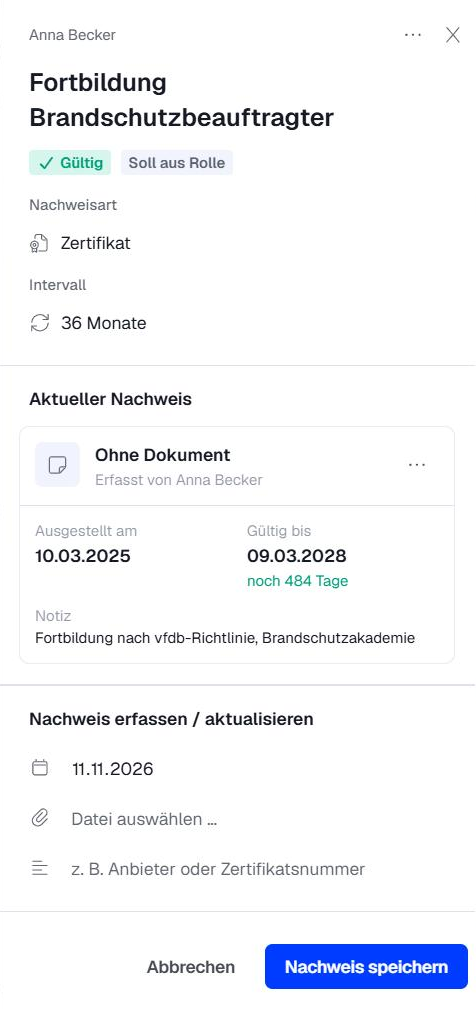
Good to know: Module responsibles define the available proof types and categories in the module settings. Once categories exist, you choose the category in the dialog or later in the skill's properties.
Define roles
- In the Skills catalog, click the skill. Its properties open on the right.
- Under Applies to roles (target profile), click Pick a role and search for the role.
- Select the role. Below it, you can see how many people now carry this requirement.
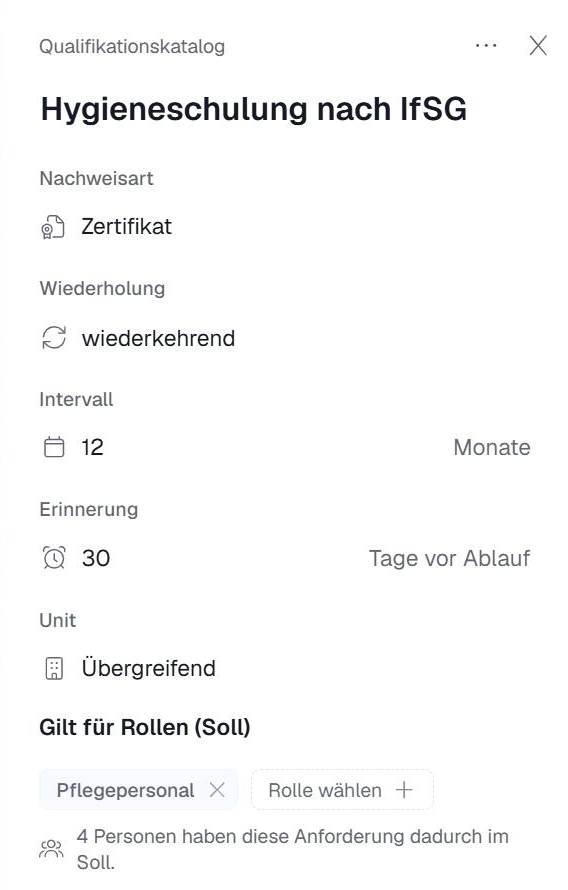
Changes are saved right away. Both the owner and the deputy of a role carry the requirement.
Good to know: The role itself shows which skills it requires. However, you can only change the assignment in skills management.
What happens automatically
- New person in the role: They need the skill from now on and get a task as long as the proof is missing.
- Person leaves the role: The requirement no longer applies, and open tasks are closed.
- Role is deleted: The requirements from this role no longer apply.
Delete a skill
Caution: When you delete a skill, all its proofs and their history are deleted too, and the skill is removed from all roles. This cannot be undone. Make sure you really don't need it anymore.
Working with AI assistants
You don't have to do everything by hand. With the "API / MCP" add-on module, an AI assistant such as Claude or Microsoft Copilot can do it for you:
- Import your Excel matrix: Give the assistant your existing spreadsheet. It creates the skills and proofs in Ariadne.
- Enter supervisors: Give it an org chart, for example as an Excel file or image. It fills in the Supervisor field in the user profiles. This also makes it easy to apply later changes.
- Ask questions: for example, "Whose first aid proof expires in the next three months?"
Good to know: The assistant can only do what you are allowed to do. To learn how to set it up, see MCP Module: Using Ariadne Knowledge with ChatGPT, Copilot, and Others.
Related articles
Was this article helpful?
That’s Great!
Thank you for your feedback
Sorry! We couldn't be helpful
Thank you for your feedback
Feedback sent
We appreciate your effort and will try to fix the article