Audit templates let you run recurring audits based on the same catalog of criteria every time. This article shows you how to create an audit template and how to create a new template from an existing audit.
Create an audit template
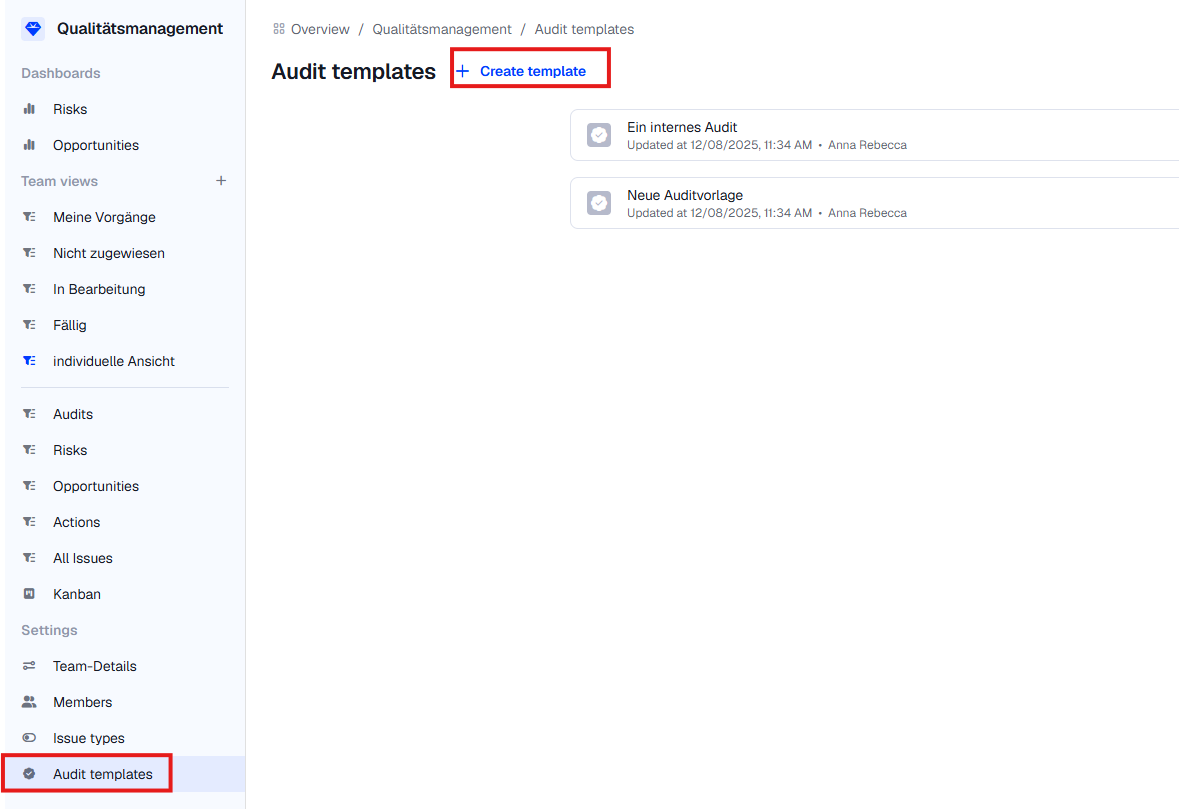
- In the team menu, open the Audit templates area.
- Click + Create template.
- Enter a title and description so you can easily find the template later.
- Click Save.
- Then build the catalog of criteria or import a ready-made one from an Excel file. For details, see Build and manage a catalog of criteria.
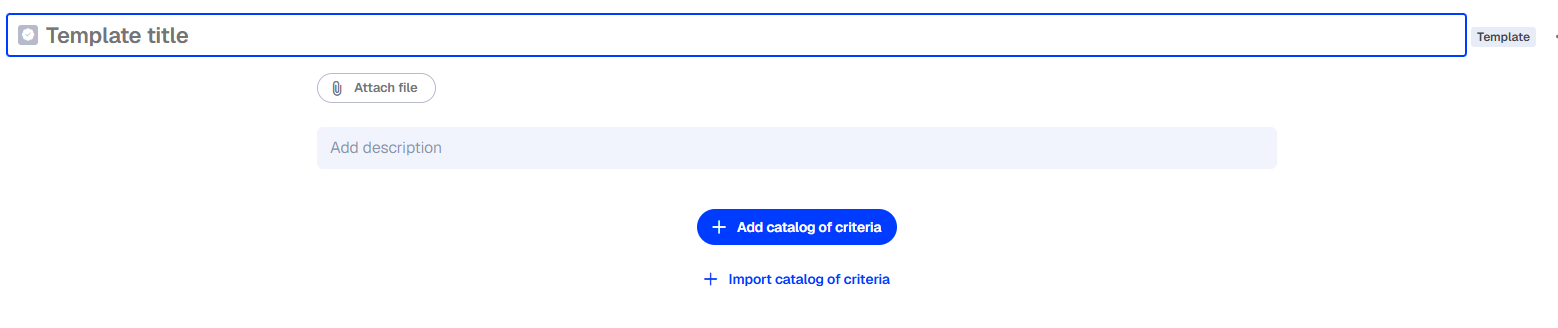
Use Attach file to add further information to the template, for example notes or explanations from an external auditor. These attachments are automatically carried over to the audit when the template is used.
Create an audit template from an audit
If a catalog of criteria has proven itself in an audit, you can create a new audit template from it directly.
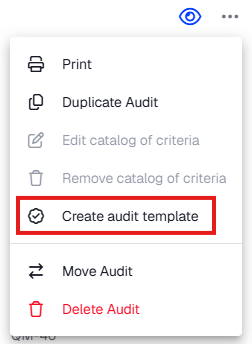
- Open the audit whose catalog of criteria you want to save as a template.
- Click Create audit template.
- Adjust the title of the new audit template if needed and confirm.
Result
The new audit template appears in your team's Audit templates area and is available for future audits.
Related articles
Was this article helpful?
That’s Great!
Thank you for your feedback
Sorry! We couldn't be helpful
Thank you for your feedback
Feedback sent
We appreciate your effort and will try to fix the article